Database Lookups

Labels
AI(22) AJAX(112) App Studio(10) Apple(1) Application Builder(245) Application Factory(207) ASP.NET(95) ASP.NET 3.5(45) ASP.NET Code Generator(72) ASP.NET Membership(28) Azure(18) Barcode(2) Barcodes(3) BLOB(18) Business Rules(3) Business Rules/Logic(140) BYOD(13) Caching(2) Calendar(5) Charts(29) Cloud(14) Cloud On Time(2) Cloud On Time for Windows 7(2) Code Generator(54) Collaboration(11) command line(1) Conflict Detection(1) Content Management System(12) COT Tools for Excel(26) CRUD(1) Custom Actions(1) Data Aquarium Framework(122) Data Sheet(9) Data Sources(22) Database Lookups(50) Deployment(22) Designer(178) Device(1) Digital Workforce(3) DotNetNuke(12) EASE(20) Email(6) Features(101) Firebird(1) Form Builder(14) Globalization and Localization(6) HATEOAS(13) How To(1) Hypermedia(3) Inline Editing(1) Installation(5) JavaScript(20) Kiosk(1) Low Code(3) Mac(1) Many-To-Many(4) Maps(6) Master/Detail(36) Micro Ontology(5) Microservices(4) Mobile(63) Mode Builder(3) Model Builder(3) MySQL(10) Native Apps(5) News(18) OAuth(9) OAuth Scopes(1) OAuth2(14) Offline(20) Offline Apps(4) Offline Sync(5) Oracle(11) PKCE(2) Postgre SQL(1) PostgreSQL(2) PWA(2) QR codes(2) Rapid Application Development(5) Reading Pane(2) Release Notes(186) Reports(48) REST(29) RESTful(33) RESTful Workshop(14) RFID tags(1) SaaS(7) Security(81) SharePoint(12) SPA(5) SQL Anywhere(3) SQL Server(26) SSO(1) Stored Procedure(4) Teamwork(15) Tips and Tricks(87) Tools for Excel(3) Touch UI(93) Transactions(5) Tutorials(183) Universal Windows Platform(3) User Interface(337) Video Tutorial(37) Web 2.0(100) Web App Generator(101) Web Application Generator(607) Web Form Builder(40) Web.Config(9) Workflow(28)
Archive
Blog
Database Lookups
Monday, June 4, 2012PrintSubscribe
Data Lookup Capabilities

Code On Time web applications offer rich data lookup capabilities.

Fields with an Items Style of Lookup render as link within a textbox. The Eraser icon to the right of the link will clear the field. The New Record icon to the right of the textbox will create a new lookup item.

Data lookup field rendered as a link within a textbox.

When the link is clicked on, a lookup window will open. Users can perform Quick Find or use Advanced Search Bar.

Data lookup windows allows sorting, adaptive filtering, quick find, and advanced search bar.

A lookup field can be configured as an Auto Complete text box. When a user types in a value, the list of lookup items will be filtered. If an item is selected, it is inserted in the field. If no item is selected, the field value will revert.

Auto Complete data lookup fields will filter according to the parameter entered by the user.

Both Lookup and Auto Complete styles do not prefetch data items when the form view is loaded.

A lookup field can also be configured as a Check Box List. The values can come from a static list or a many-to-many table.

Data Lookups can be configured as a Check Box List so that the user can select multiple values.

Data lookup fields can be rendered as a Radio Button List.

Data lookup rendered as a radio button list.

Consult the following list of properties when configuring a lookup field.

Property Description
Items Style Select the type of Items Style for the lookup. The options include: Auto Complete, Check Box, Check Box List, Drop Down List, List Box, Lookup, Radio Button List, User ID Lookup, User Name Lookup.
Items Data Controller Select the controller data source.
Items Data View Select the data view that will be displayed for the lookup.
Data Value Field Select the value that the field will save to the database.
Data Text Field Select the text that the field will display to the end user.
New Data View If the user is allowed to create new lookup items, this will specify the data view that will be used. A blank value will hide the New Record icon.
Copy You can copy field values from the selected lookup item into the current record.
Search On Start Enabling this property will open the lookup in search mode.
Activate If Blank Enabling this property will open the lookup if the field is blank when a user opens the form.
Lookup Window Description Specify the text that will be displayed above the lookup.
Page Size Specify how many lookup items will be displayed at one time in the lookup modal window.
Search By First Letter Allows you to search for a lookup item by the first letter.
Monday, June 4, 2012PrintSubscribe
Items Style User Id Lookup

ASP.NET Membership offers a prefabricated registry of users and roles. There are situations in which the membership User ID needs to be referenced in the database. You can reference a User ID with the User Id Lookup items style.

Create an Owner field in the Orders table.

Start SQL Server Management Studio. In the Object Explorer, right-click on Databases / Northwind / Tables / dbo.Orders node, and select Design option.
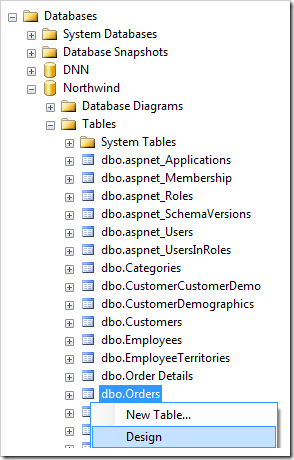
Design Orders table in Northwind database.

Add a column with the following properties:

Column Name Data Type Allow Nulls
OwnerId nvarchar(50) True

Save the table design modifications.

Note that the data type of the field may be configured as uniqueidentifier if you are working with SQL Server. If your database engine is MySQL, then int type can be used instead.

Start Code On Time web application generator. Click on the project name, and refresh the Orders data controller.
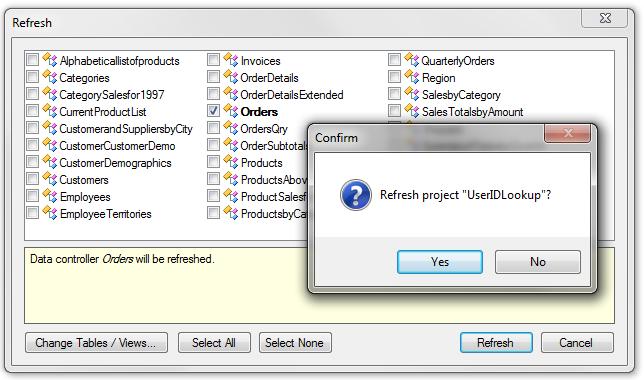
Refresh the Orders controller.

Press Generate to regenerate the web application. When it opens in a browser window, navigate to Orders page and edit a record. The OwnerId field is just a simple text box. It needs to be converted into a User Id Lookup.
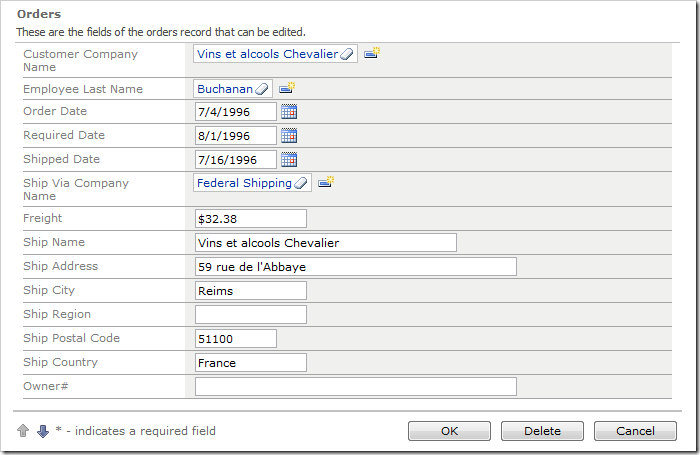
The OwnerId field is a simple text box.

Start the Project Designer. Switch to the Controllers tab, and double-click on Orders/ Fields / OwnerId node.
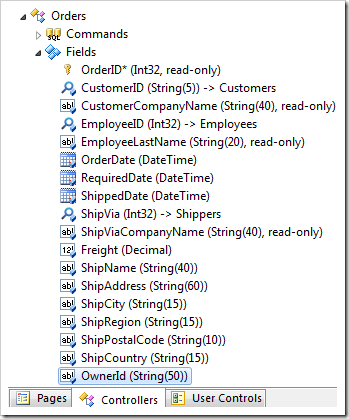
OwnerId field in the Orders controller in Code On Time Project Explorer.

Give this field the following properties:

Property Value
Label Owner
Items Style User ID Lookup

Press OK to save the field. On the toolbar, press Browse, and wait for the application to load.

Navigate to the Orders page, and edit a record. The Owner field will now be a lookup.
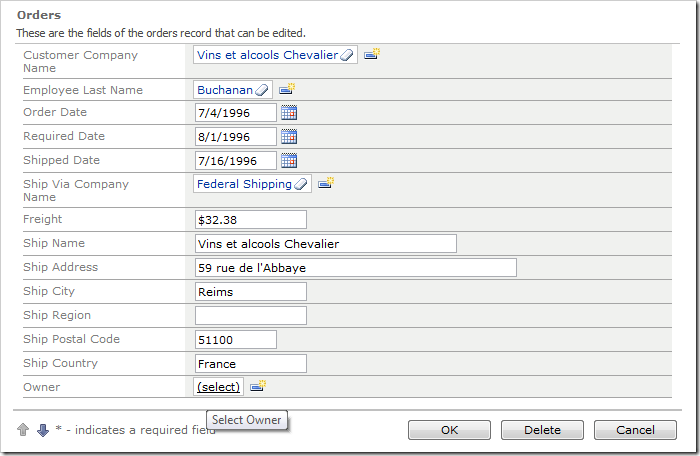
OwnerId field is now a User Id Lookup.

Click on the lookup link, and it will show a list of users.
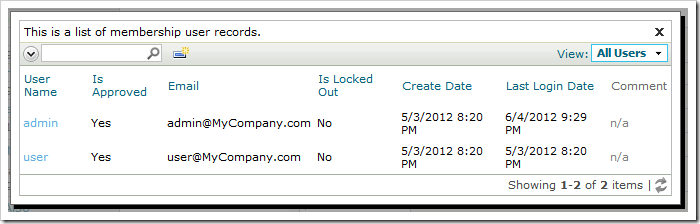
User Id Lookup displaying a list of users.

When you select a user, the User Id will be inserted into the field.
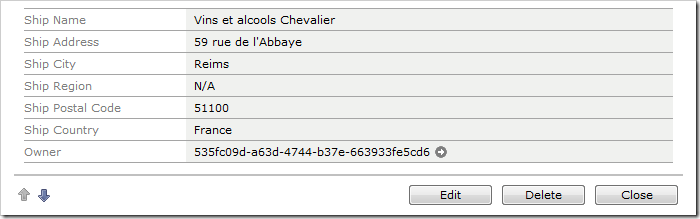
Owner field displaying the User Id.

Friday, June 1, 2012PrintSubscribe
Feature: Data Lookup Styles

Data lookup fields, also known as picklists, are an integral part of any database application. Code On Time web applications support a variety of data lookup styles that can be configured for any field.

Auto Complete

Auto Complete lookup item style allows the user to type in values in the field, and a list of matching lookup items will be displayed. If the entered text does not match to any items in the list, then the input field will revert to the original value.

Autocomplete lookup items style.

Check Box

Check Box allows the user to enable or disable a property.

Checkbox lookup items style.

Check Box List

Check Box List allows the user to make multiple selections. The field values will be saved as a comma separated list. You can also create many-to-many fields.

Check Box List lookup items style.

Drop Down List

The Drop Down List allows the user to select an item from a list.

Drop Down List lookup items style.

List Box

The List Box displays several items at one time.

List Box lookup items style.

Lookup

The default style is Lookup. It is presented as a link inside a textbox. The Eraser icon to the right of the link will clear the field. The New Record icon to the right of the textbox allows the user to create new lookup items.

Lookup items style.

When you click on the link, a lookup window will open. The lookup is a full featured Code On Time grid view, with sorting, adaptive filtering, Quick Find, and Advanced Search available for use to help you find data quickly.

Lookup modal window with advanced search query.

Radio Button List

Radio Button List is another lookup style that allows the user to select an item from a short list.

Radio Button List lookup items style.