User Interface

Labels
AI(22) AJAX(112) App Studio(10) Apple(1) Application Builder(245) Application Factory(207) ASP.NET(95) ASP.NET 3.5(45) ASP.NET Code Generator(72) ASP.NET Membership(28) Azure(18) Barcode(2) Barcodes(3) BLOB(18) Business Rules(3) Business Rules/Logic(140) BYOD(13) Caching(2) Calendar(5) Charts(29) Cloud(14) Cloud On Time(2) Cloud On Time for Windows 7(2) Code Generator(54) Collaboration(11) command line(1) Conflict Detection(1) Content Management System(12) COT Tools for Excel(26) CRUD(1) Custom Actions(1) Data Aquarium Framework(122) Data Sheet(9) Data Sources(22) Database Lookups(50) Deployment(22) Designer(178) Device(1) Digital Workforce(3) DotNetNuke(12) EASE(20) Email(6) Features(101) Firebird(1) Form Builder(14) Globalization and Localization(6) HATEOAS(13) How To(1) Hypermedia(3) Inline Editing(1) Installation(5) JavaScript(20) Kiosk(1) Low Code(3) Mac(1) Many-To-Many(4) Maps(6) Master/Detail(36) Micro Ontology(5) Microservices(4) Mobile(63) Mode Builder(3) Model Builder(3) MySQL(10) Native Apps(5) News(18) OAuth(9) OAuth Scopes(1) OAuth2(14) Offline(20) Offline Apps(4) Offline Sync(5) Oracle(11) PKCE(2) Postgre SQL(1) PostgreSQL(2) PWA(2) QR codes(2) Rapid Application Development(5) Reading Pane(2) Release Notes(186) Reports(48) REST(29) RESTful(33) RESTful Workshop(14) RFID tags(1) SaaS(7) Security(81) SharePoint(12) SPA(5) SQL Anywhere(3) SQL Server(26) SSO(1) Stored Procedure(4) Teamwork(15) Tips and Tricks(87) Tools for Excel(3) Touch UI(93) Transactions(5) Tutorials(183) Universal Windows Platform(3) User Interface(337) Video Tutorial(37) Web 2.0(100) Web App Generator(101) Web Application Generator(607) Web Form Builder(40) Web.Config(9) Workflow(28)
Archive
Blog
User Interface
Sunday, April 15, 2012PrintSubscribe
Automatic Display of Lookups

In some situations, you may want to streamline selection of lookup values when users are entering or editing data. For this purpose, lookup fields in Code On Time web applications have the “Activate If Blank” property. If this property is enabled, whenever a user opens an edit view and the lookup is blank, then the lookup window will activate automatically.

Let’s use an example. Create a sample Northwind application. Select the project name on the start page, and press Design.

In the Project Explorer, switch to the Controllers tab. Double-click on Orders / Fields / CustomerID node.
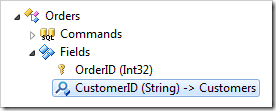
CustomerID field in Code On Time Project Explorer

Scroll down and toggle the checkbox next to “Activate If Blank”.
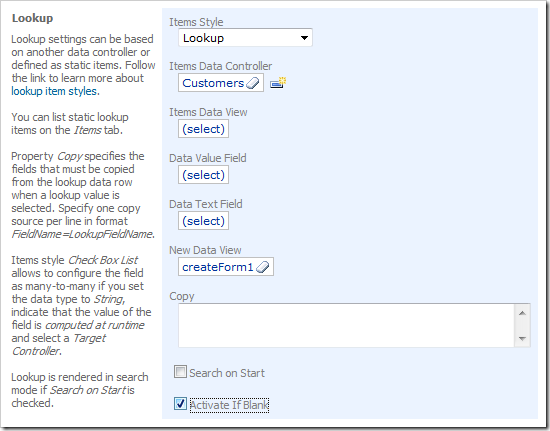
'Activate If Blank' property enabled in Code On Time Designer

Press OK to save the field.

Enable “Activate If Blank” for EmployeeID and ShipVia fields using the same method. Make sure to save each field. These fields will be activated in the order of the data fields in the view.

Select Browse on the tool bar to generate and open the application in your default web browser. Navigate to the Orders page. On the action bar, press New Orders.

The Customer ID lookup will automatically be activated, as the field is blank.
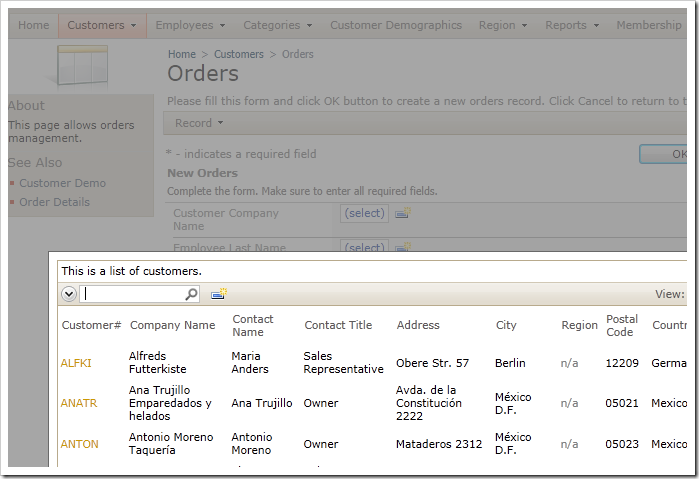
CustomerID lookup window activated when the field value is blank

Select a customer, and the Employee ID lookup will pop up right away.
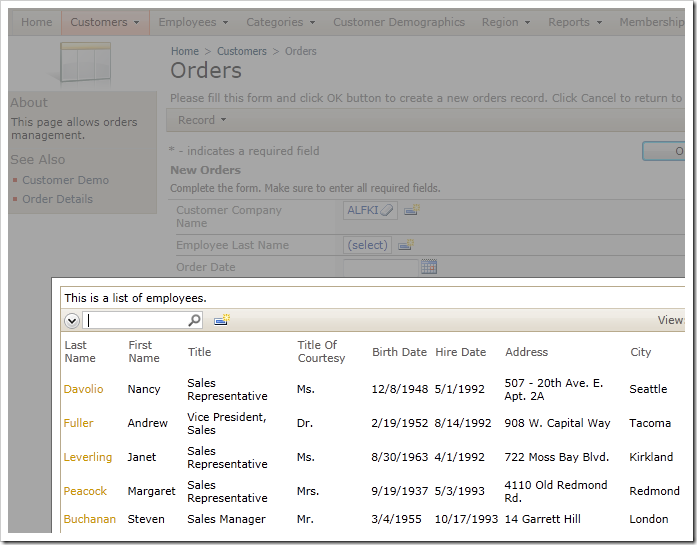
Employee ID lookup window activated when the field value is blank

When you select an employee, then the Ship Via lookup will appear.
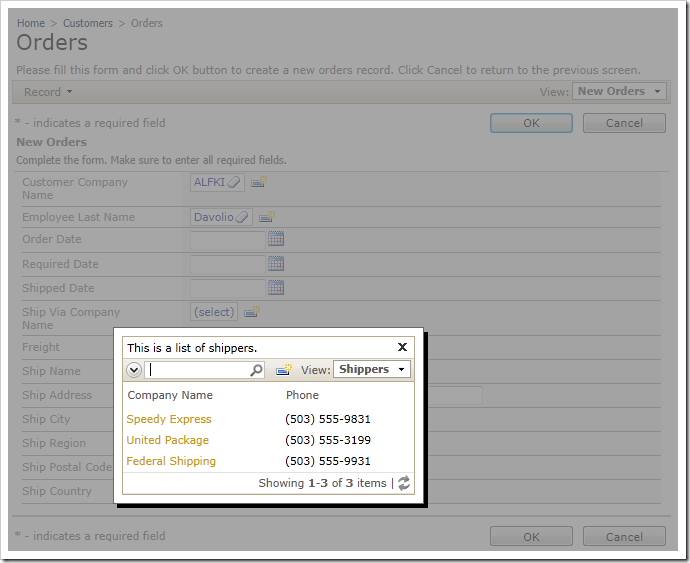
Ship Via lookup window activated when the field value is blank

This behavior will occur when you edit or create order records that have blank lookup fields, including inline edit or new modes in grid views.

Friday, April 13, 2012PrintSubscribe
Interactive History Feature

In any line-of-business web application, you may need to quickly switch between recently viewed records. For example, you may need to jump between customer accounts that you have recently been working with.

In the top left corner of the application page, select the History link.

History link in Code On Time web application

An interactive display of summary cards will appear, showing the most recently viewed master data records in the current user session. Mouse over any of the cards, and it will be brought forward. Click on the spyglass icon to cycle through the cards.

Interactive History display of recently viewed records in Code On Time web application

Clicking on any of the cards will take you directly to the record.

Master record activated from the interactive history

You can click on anywhere outside the stack of cards or press the Esc button on the keyboard to leave the interactive history.

You can enable interactive history in the Project Wizard.

Thursday, April 12, 2012PrintSubscribe
Interactive History of Recently Viewed Data

It is common for users in a line-of-business application to interact with the same data objects for extended periods of time. In this case, it may help to allow rapid switching between recently viewed objects. This capability can be enabled in the project settings of your Code On Time web application.

Start creating a sample Northwind web application. When you reach the Features page, switch to the Permalinks and History section using the box on the left side of the screen. Toggle the checkbox next to “Enable interactive history of most-recent data objects”.

'Enable interactive history of most-recent-used data objects' option under 'Permalinks and History' of Code On Time Project Wizard

Continue through the wizard. On the Themes page, select Social theme.

'Social' Theme selected in Code On Time Project Wizard

Finish configuring project settings and generate the application. When your default web browser opens, navigate to the Categories page. View several category records. Try viewing master records on other pages of the application. Any record that is displayed in the summary card on the left side of the page will be automatically added to the History of the current browsing session.

Next, click on the History link in the top left corner of the application.

History link in Code On Time web application

An interactive display of summary cards will take up the screen. When you mouse over a card, it will be brought forward. You can click on the spyglass icon to cycle through the cards.

Interactive History in Code On Time web application

Click on any card to navigate directly to the record.

Selected record in Code On Time web application

You can also click on the white space in the background or press the Esc button on your keyboard to close the History.