User Interface

Labels
AI(22) AJAX(112) App Studio(10) Apple(1) Application Builder(245) Application Factory(207) ASP.NET(95) ASP.NET 3.5(45) ASP.NET Code Generator(72) ASP.NET Membership(28) Azure(18) Barcode(2) Barcodes(3) BLOB(18) Business Rules(3) Business Rules/Logic(140) BYOD(13) Caching(2) Calendar(5) Charts(29) Cloud(14) Cloud On Time(2) Cloud On Time for Windows 7(2) Code Generator(54) Collaboration(11) command line(1) Conflict Detection(1) Content Management System(12) COT Tools for Excel(26) CRUD(1) Custom Actions(1) Data Aquarium Framework(122) Data Sheet(9) Data Sources(22) Database Lookups(50) Deployment(22) Designer(178) Device(1) Digital Workforce(3) DotNetNuke(12) EASE(20) Email(6) Features(101) Firebird(1) Form Builder(14) Globalization and Localization(6) HATEOAS(13) How To(1) Hypermedia(3) Inline Editing(1) Installation(5) JavaScript(20) Kiosk(1) Low Code(3) Mac(1) Many-To-Many(4) Maps(6) Master/Detail(36) Micro Ontology(5) Microservices(4) Mobile(63) Mode Builder(3) Model Builder(3) MySQL(10) Native Apps(5) News(18) OAuth(9) OAuth Scopes(1) OAuth2(14) Offline(20) Offline Apps(4) Offline Sync(5) Oracle(11) PKCE(2) Postgre SQL(1) PostgreSQL(2) PWA(2) QR codes(2) Rapid Application Development(5) Reading Pane(2) Release Notes(186) Reports(48) REST(29) RESTful(33) RESTful Workshop(14) RFID tags(1) SaaS(7) Security(81) SharePoint(12) SPA(5) SQL Anywhere(3) SQL Server(26) SSO(1) Stored Procedure(4) Teamwork(15) Tips and Tricks(87) Tools for Excel(3) Touch UI(93) Transactions(5) Tutorials(183) Universal Windows Platform(3) User Interface(337) Video Tutorial(37) Web 2.0(100) Web App Generator(101) Web Application Generator(607) Web Form Builder(40) Web.Config(9) Workflow(28)
Archive
Blog
User Interface
Thursday, April 12, 2012PrintSubscribe
Displaying Modal Form Views

Web applications generated with Code On Time use an in-place form when a user drills in to a master record, such as the selected Supplier in the picture below.

In-place form view of a selected master record in Suppliers page in Code On Time web application

Modal presentation is used for master data views without children and for child data views. The picture below shows the modal form view displayed when a Product is selected in the child data view.

Modal form view displaying a selected child Products on Suppliers page in web application created with Code On Time

You can change the presentation of a data view using the “Show Modal Form” property.

Start Code On Time web app generator, click on the project name, and press Design. Double-click on Region / Suppliers / container2 / view2 node in the Project Explorer. Uncheck the Show Modal Forms property.

'Show Modal Forms' property unchecked

Press OK to save the data view. On the tool bar, press Generate to regenerate the web application.

When the web application opens in your default web browser, navigate to Suppliers page, and select any supplier. Select a product in the child data view, and you will see the record form opened in-place. Users drill into the details of a record in the grid view.

Both master and child data views using in-place form

There is also an option in the Project Wizard to control modal presentation of form views for the entire application.

Thursday, April 12, 2012PrintSubscribe
Controlling Modal Presentation of Application Form Views

By default, Code On Time web applications use modal forms to display child data views and master data views without children, such as the one in the picture below. (In this example, the data fields in the category are floating in the form, instead of the traditional top-down presentation.)
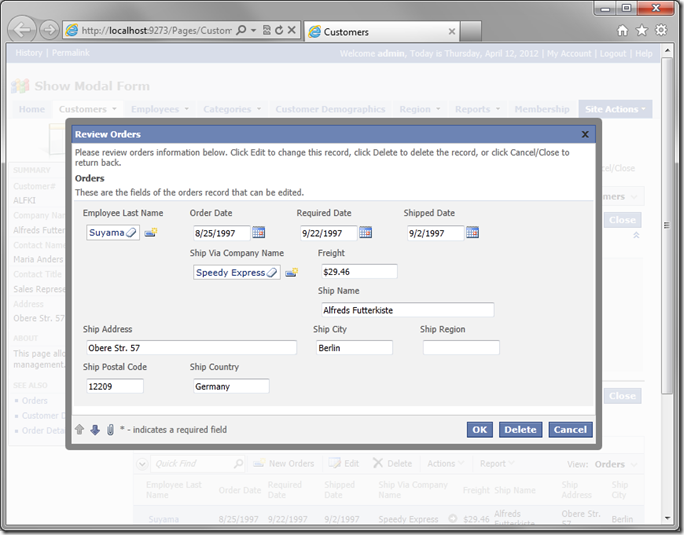
Orders child data view in modal form view in Code On Time web application

The Project Wizard allows you to disable this functionality across all application pages.

Start the web application generator, click on the project name, and select Settings. Choose Features option. In the list on the left side of the page, select Form Properties. Uncheck “Show modal forms in master data views without children and in child data views”.
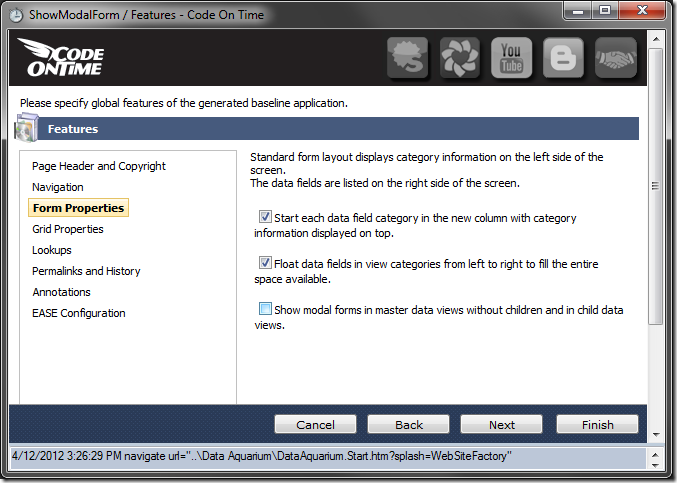
'Show modal forms in master data views without children and in child data views' property in Code On Time Project Wizard

Press Finish to get to the Summary page. Select Refresh to have the generator recreate the pages without modal form views. If any of the pages have been modified, then the changes will not be applied, according to the refreshing conditions.

As this property does not apply to any specific controllers, none of them need to be selected for refresh. Press Refresh, and choose Yes to confirm the operation.
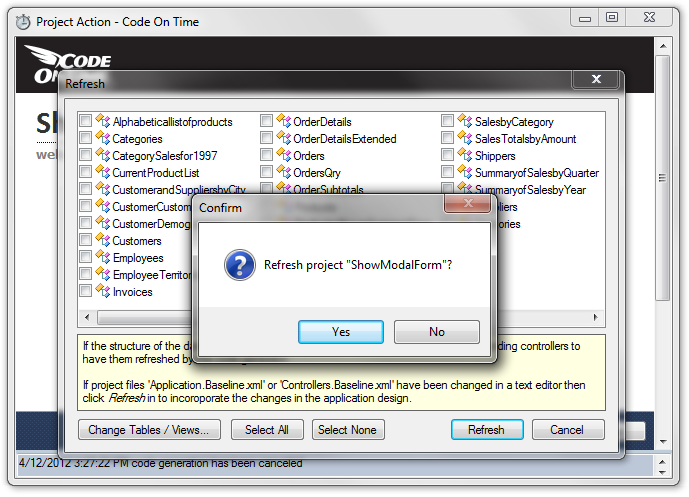
Confirmation of Refresh of Code On Time web application

Continue to generate the application.

When the web application opens in your default web browser, navigate  to Customers page, select a customer, and view any order. The data views will drill into form view instead of being displayed in a lightbox style above the list of Orders.
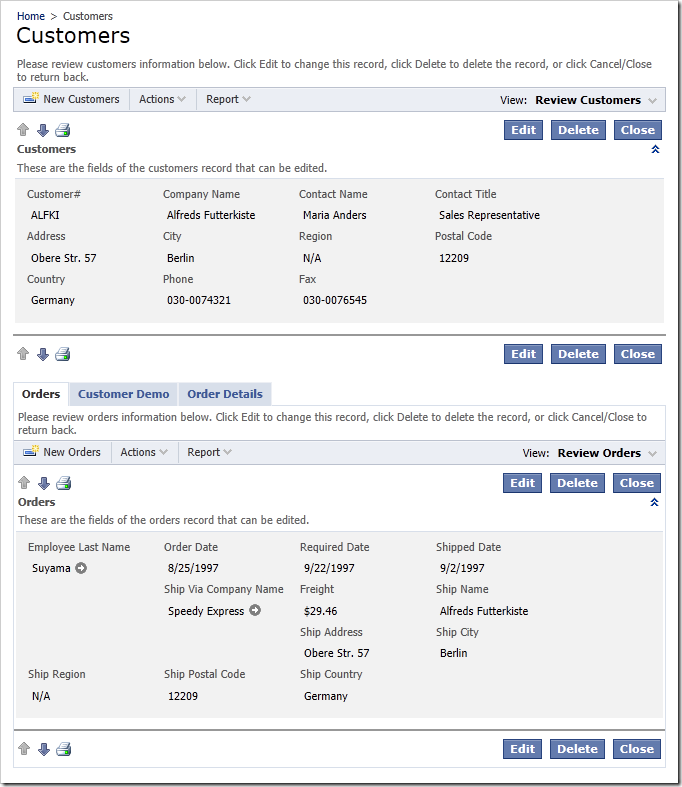
Master and child data view using inline form view in Code On Time web application

You can also enable or disable presentation of child views on a data view level of individual pages.

Monday, April 9, 2012PrintSubscribe
"Floating" Categories

The picture below shows the  Employees editForm1 view. By default, the fields are arranged in a vertical list. The category description is at the top of the form, the field labels are in the first column, and the data fields are in the second column. When you resize the page width, the column width will change.

Employees category with Floating disabled in Code On Time web application

Let’s use the Float property on the category to change the presentation of the data fields.

Start Code On Time generator, click on the project name, and press Design. In the bottom right corner of the Project Explorer, switch to the Controllers tab. Double-click on Employees / Views / editForm1 / c1 – Employees node.

Path to Employees category in Code On Time Designer

Change the Floating property to “Yes”.

Floating property set to 'Yes' for Employees category

Press OK to save the category. On the tool bar, press Generate. Navigate to the Employees page, and select a record. The category is now much more compact. Each field has the label above it, floating around the category. When you resize the page, the fields will be rearranged to fit.

Employees category with Floating enabled in Code On Time web application

You can use a combination of floating and non-floating categories to optimize the user interface, such as the Order Details page shown below.

Order Details page with one floating category

Floating data field categories can serve as a quick way to make a compact user interface without much effort. If you want more control over the placement of data fields, then use custom form templates or category-level templates.