Tutorials

Labels
AI(22) AJAX(112) App Studio(10) Apple(1) Application Builder(245) Application Factory(207) ASP.NET(95) ASP.NET 3.5(45) ASP.NET Code Generator(72) ASP.NET Membership(28) Azure(18) Barcode(2) Barcodes(3) BLOB(18) Business Rules(3) Business Rules/Logic(140) BYOD(13) Caching(2) Calendar(5) Charts(29) Cloud(14) Cloud On Time(2) Cloud On Time for Windows 7(2) Code Generator(54) Collaboration(11) command line(1) Conflict Detection(1) Content Management System(12) COT Tools for Excel(26) CRUD(1) Custom Actions(1) Data Aquarium Framework(122) Data Sheet(9) Data Sources(22) Database Lookups(50) Deployment(22) Designer(178) Device(1) Digital Workforce(3) DotNetNuke(12) EASE(20) Email(6) Features(101) Firebird(1) Form Builder(14) Globalization and Localization(6) HATEOAS(13) How To(1) Hypermedia(3) Inline Editing(1) Installation(5) JavaScript(20) Kiosk(1) Low Code(3) Mac(1) Many-To-Many(4) Maps(6) Master/Detail(36) Micro Ontology(5) Microservices(4) Mobile(63) Mode Builder(3) Model Builder(3) MySQL(10) Native Apps(5) News(18) OAuth(9) OAuth Scopes(1) OAuth2(14) Offline(20) Offline Apps(4) Offline Sync(5) Oracle(11) PKCE(2) Postgre SQL(1) PostgreSQL(2) PWA(2) QR codes(2) Rapid Application Development(5) Reading Pane(2) Release Notes(186) Reports(48) REST(29) RESTful(33) RESTful Workshop(14) RFID tags(1) SaaS(7) Security(81) SharePoint(12) SPA(5) SQL Anywhere(3) SQL Server(26) SSO(1) Stored Procedure(4) Teamwork(15) Tips and Tricks(87) Tools for Excel(3) Touch UI(93) Transactions(5) Tutorials(183) Universal Windows Platform(3) User Interface(337) Video Tutorial(37) Web 2.0(100) Web App Generator(101) Web Application Generator(607) Web Form Builder(40) Web.Config(9) Workflow(28)
Archive
Blog
Tutorials
Thursday, October 18, 2012PrintSubscribe
Order Form Sample–Part 3

Let’s create a baseline Code On Time Web Site Factory application. Run the web app generator, and select Web Site Factory project type. If you have already created a project previously, click on the Create new web application link under the list of projects to access the New Project screen.

Create a new Web Site Factory project.

Web Site Factory project type is based on a directory structure. Files will be compiled upon saving to the hard drive. Web Site Factory is suitable for an application of any complexity and is the easiest to manage. If you’re starting web development or coming to ASP.NET from other technologies, then this is the project type for you.

In the Name field, enter “OrderForm”. This will be the name of the folder that stores the project, and will be the display name shown on the start page of the code generator. Select the programming language of your choice, and press Create.

Specify the name for the project, as well as the programming language of your choice.

When finished, press Next. This will create the project.

On the next page, you can enter the Namespace, which will be used throughout the whole application. The namespace is a prefix used in all classes of the generated code base. We’ll leave the default name “MyCompany”. You can also change the Framework to either .NET 3.5 or 4.0. The latter is suggested, as it has better performance.

This screen allows changing the Namespace and Framework of the project.

Press Next to continue to the next page.

Thursday, September 27, 2012PrintSubscribe
“Getting Started” Video Series

To help you get started with Code On Time web application generator, we have created a series of videos covering several important topics. Note that some of the advanced features, such as modal forms and advanced search bar are not available in the free edition of Code On Time.

 Download a printable version.

Each topic has both a detailed article with text and pictures as well as YouTube video tutorials to fit your preferred style of learning.

All YouTube tutorials are available in 720p HD resolution – make sure to change the resolution using the Gear icon in the bottom right corner of the player in order to provide a clear picture. Then, click on the bottom right icon to enjoy the video in full screen.

Changing the quality of a YouTube video to 720p.     Enabling full screen mode for a YouTube video.

Creating an App

Learn how to create your first Code On Time web application. This will cover creating the Northwind database and adding ASP.NET Membership using Microsoft SQL Server 2012 Express.

Watch | Read

Using the Project Designer

Learn the basics for using the Project Designer efficiently in order to perfect your web app.

Watch | Read

Creating a Three-Level Master Detail Page

Learn how to quickly create a new page and configure a three-level master-detail relationship between Customers, Orders, and Order Details controllers.

Watch | Read

Rearranging Data Fields

Learn how to rearrange, delete, or add data fields to a data view.

Watch | Read

Designing Forms

Learn how to change form presentation. This tutorial covers floating fields in a category, creating multi-column forms, and using custom category templates.

Watch | Read

Configuring Charts

Learn how to create a chart view to graphically present data to the user. The chart will be available as a standalone view and a child view filtered by the master view.

Watch | Read

Creating Many-to-Many Fields

Learn to configure a many-to-many field between Employees and Territories controllers. This field will be presented as a check box list on the Employees form.

Watch | Read

Creating Calculated Fields

Learn how to add a field to the Order Details form that will calculate a line item extended price.  Business rules will be used to update the field when the user changes other field values.

Watch | Read

Implementing a Custom Action

Learn how to implement an action that will call a custom SQL business rule to apply a discount to all line items of an order.

Watch | Read

Friday, September 21, 2012PrintSubscribe
Duplicate Action

The duplicate action allows the user to create a new record using the values of an existing record.

Duplicate in Form

Applications generated with Code On Time will have the Duplicate action available in the context menu of a row in grid view.
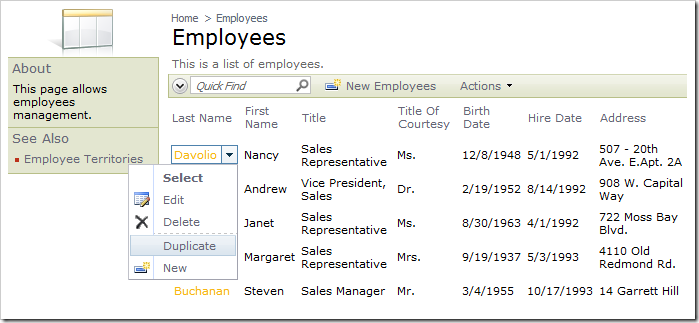
Duplicate action for context menu of a row in Employees grid.

When the action is selected, createForm1 will be activated. Values from the duplicated row will populate the fields.
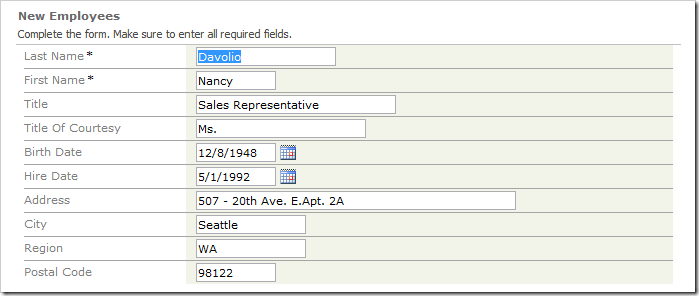
New Employees form with values populated from the duplicated record.

The default Duplicate action is configured to use createForm1 view as an argument.

Duplicate in Grid

Let’s create a Duplicate action that will create a new row in grid view.

Start the Project Designer. Switch to the Controllers tab in the Project Explorer. Right-click on Employees / Actions / ag1 (Grid) action group node and press New Action.
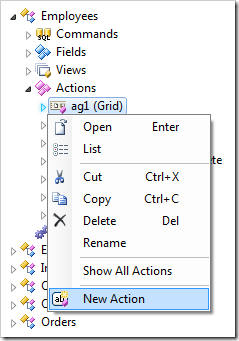
New Action context menu option for action group 'ag1' in the Project Explorer.

Assign the following values to the new action:

Property Value
Command Name Duplicate
Command Argument grid1
Header Text Duplicate in Grid

Press OK to save. On the toolbar, press Browse.

Navigate to the Employees page and activate the context menu for a row. Click on Duplicate in Grid.
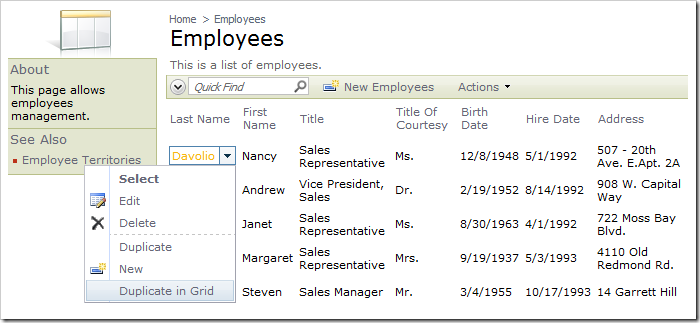
New action 'Duplicate in Grid' under context menu for row in Employees grid.

A new row will be created with the same values as the selected row.
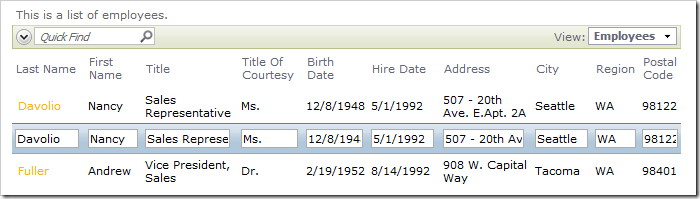
New row created with values from the duplicated record.

Note that there are no Insert or Cancel actions available. You will need to add these actions with When Last Command Name of “Duplicate” in order to allow the user to save or cancel the record.

Adding Insert and Cancel actions

In the Project Explorer, right-click on Employees / Actions / ag8 (Row) node, and press New Action.
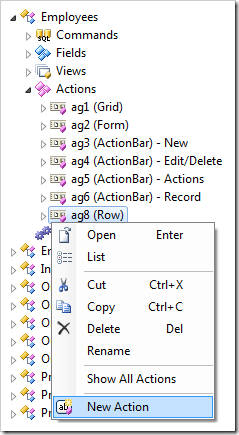
New Action context menu option on action group node 'ag8'.

Assign the following values:

Property Value
Command Name Insert
When Last Command Name Duplicate

Click OK, and create another action:

Property Value
Command Name Cancel
When Last Command Name Duplicate

Press OK to save. On the toolbar, press Browse.

Navigate to Employees page, and select the Duplicate in Grid action from the context menu. The new row will now have Insert and Cancel actions underneath.
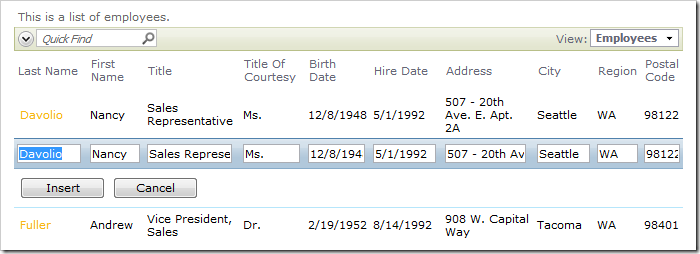
Duplicated row now has 'Insert' and 'Cancel' actions.