Tutorials

Labels
AI(22) AJAX(112) App Studio(10) Apple(1) Application Builder(245) Application Factory(207) ASP.NET(95) ASP.NET 3.5(45) ASP.NET Code Generator(72) ASP.NET Membership(28) Azure(18) Barcode(2) Barcodes(3) BLOB(18) Business Rules(3) Business Rules/Logic(140) BYOD(13) Caching(2) Calendar(5) Charts(29) Cloud(14) Cloud On Time(2) Cloud On Time for Windows 7(2) Code Generator(54) Collaboration(11) command line(1) Conflict Detection(1) Content Management System(12) COT Tools for Excel(26) CRUD(1) Custom Actions(1) Data Aquarium Framework(122) Data Sheet(9) Data Sources(22) Database Lookups(50) Deployment(22) Designer(178) Device(1) Digital Workforce(3) DotNetNuke(12) EASE(20) Email(6) Features(101) Firebird(1) Form Builder(14) Globalization and Localization(6) HATEOAS(13) How To(1) Hypermedia(3) Inline Editing(1) Installation(5) JavaScript(20) Kiosk(1) Low Code(3) Mac(1) Many-To-Many(4) Maps(6) Master/Detail(36) Micro Ontology(5) Microservices(4) Mobile(63) Mode Builder(3) Model Builder(3) MySQL(10) Native Apps(5) News(18) OAuth(9) OAuth Scopes(1) OAuth2(14) Offline(20) Offline Apps(4) Offline Sync(5) Oracle(11) PKCE(2) Postgre SQL(1) PostgreSQL(2) PWA(2) QR codes(2) Rapid Application Development(5) Reading Pane(2) Release Notes(186) Reports(48) REST(29) RESTful(33) RESTful Workshop(14) RFID tags(1) SaaS(7) Security(81) SharePoint(12) SPA(5) SQL Anywhere(3) SQL Server(26) SSO(1) Stored Procedure(4) Teamwork(15) Tips and Tricks(87) Tools for Excel(3) Touch UI(93) Transactions(5) Tutorials(183) Universal Windows Platform(3) User Interface(337) Video Tutorial(37) Web 2.0(100) Web App Generator(101) Web Application Generator(607) Web Form Builder(40) Web.Config(9) Workflow(28)
Archive
Blog
Tutorials
Tuesday, September 4, 2012PrintSubscribe
Rearranging Data Fields

The application generator composes this view of Customers from the database.

Customers grid on the Order Manager page without any customization.

Let’s change some of the data fields presented in the view. For example, let’s move Phone data field next to Contact Name, remove the Region data field, and add Fax to the view.

Moving

Switch to the Project Designer. In the Project Explorer, activate the Controllers tab and expand to Customers / Views / grid1 data view node. Drag Phone data field and drop it on the right side of ContactName data field to place it after the target.

Dropping Phone data field on the right side of ContactName data field.     Phone data field has been placed after ContactName in the list of data fields in view 'grid1'.

Deleting

Right-click on Customers / Views / grid1 / Region data field node, and select Delete.

Delete context menu option on the Region data field.     Region data field has been removed from 'grid1' view.

Adding

Expand Customers / Fields node. Drag Fax field node onto Customers / Views / grid1 node to create a data field from the Fax field.

Dropping Fax field node onto 'grid1' view node will create a data field.     Fax data field has been created in view 'grid1'.

Switch to the Pages tab in the Project Explorer. Right-click on Order Manager page node, and press View in Browser.

View in Browser context menu option for Order Manager page node will generate the project and open the relevant page node.

The Customers grid with new column layout will be displayed. The Phone field is more conveniently placed next to the Contact Name. The Region field has been removed. Fax has been added.

The modified Customers grid.

Saturday, September 1, 2012PrintSubscribe
Creating a Three-Level Master-Detail Page

Let’s create a page with a three-level master-detail relationship between Customers, Orders, and Order Details controllers.
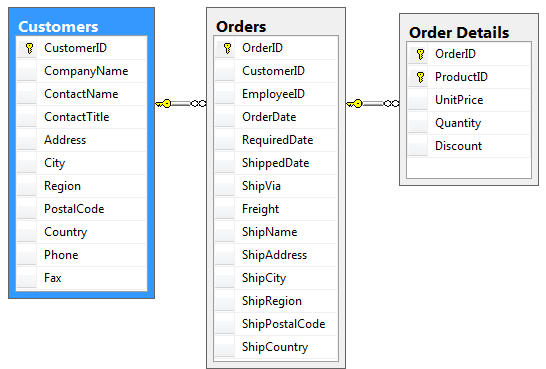
Three-level master-detail relationship between Customers, Orders, and Order Details tables.

Creating the Page

Start the Project Designer. On the toolbar of the Project Explorer, click on the New Page icon.
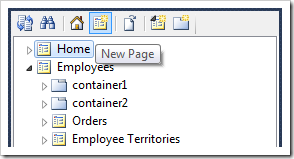
New Page icon on the Project Explorer toolbar.

Enter “OrderManager” in the page Name and press OK to create a new page.

Property Value
Name OrderManager

The Order Manager page will be added to the bottom of the list of pages in the Project Explorer. Drag Order Manager node to the right side of Home node to place it after the page.
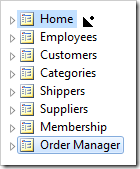
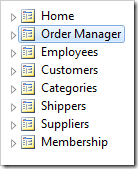
Dropping Order Manager page node on the right side of Home node.     Order Manager page is placed after Home page.

Switch to the Controllers tab in the Project Explorer. While holding Ctrl, select the controllers in the following order: Customers, Orders, OrderDetails. Right-click on OrderDetails, and press Copy.
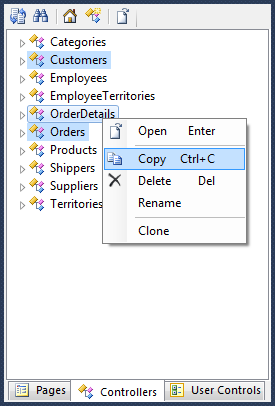
Copy context menu option on OrderDetails controller node in the Project Explorer.

Switch back to the Pages tab. Right-click on Order Manager page node, and press Paste option. The controllers will be instantiated as data views in separate containers on the page.
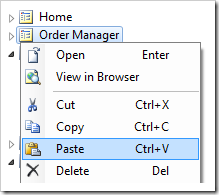
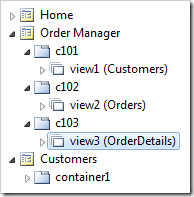
Paste context menu option on the Order Manager page node in the Project Explorer.     Views for Customers, Orders, and Order Details controllers have been added to the Order Manager page.

Right-click on Order Manager page node, and press View in Browser.
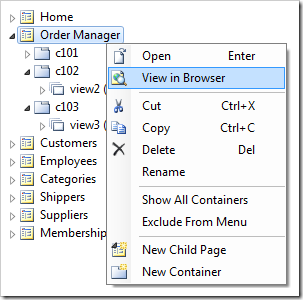
'View in Browser' context menu option for a page node will generate the project and open the relevant page in the default browser.

Navigate to the Order Manager page. Three views will be available on the page, but they do not have any master-detail relationships established between them. The three data views are completely independent from each other.
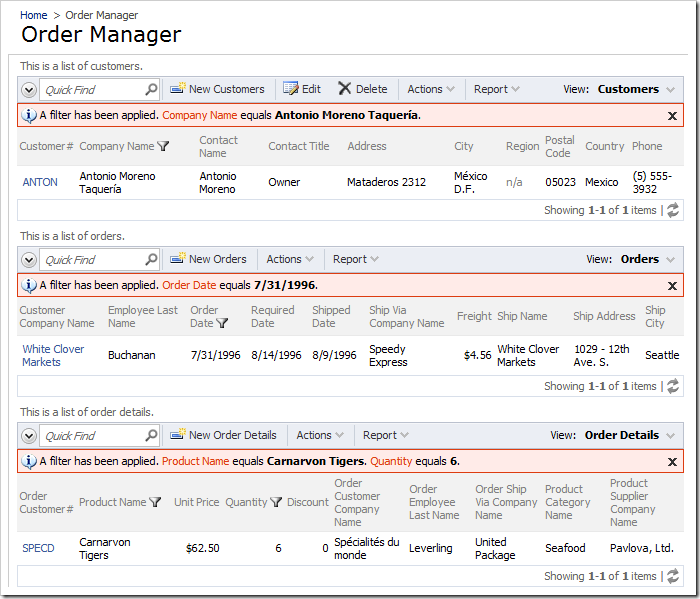
Order Manager page with three unconnected data views. Filters have been applied to reduce the size of the image.

Establishing Master-Detail Relationships

Switch back to the Project Designer. In the Project Explorer, drag the data field node Order Manager / c102 / view2 / grid1 / CustomerID onto the view node Order Manager / c101 / view1. This will configure a master-detail relationship between view2 and view1, with CustomerID as the filter field.
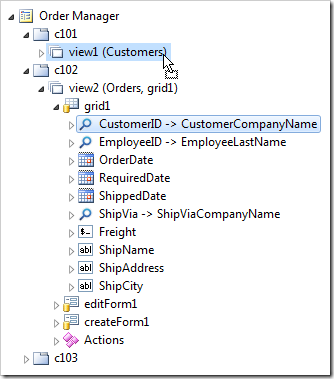
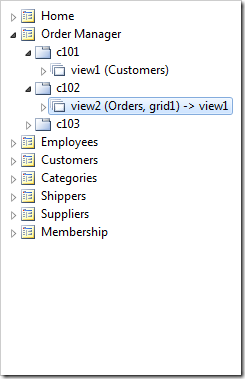
Dragging CustomerID data field node onto 'view1' data view node.     'View2' has been configured as a detail of the master view 'view1'.

Next, drag the data field node Order Manager / c103 / view3 / grid1 / OrderID and drop it onto view node Order Manager / c102 / view2.
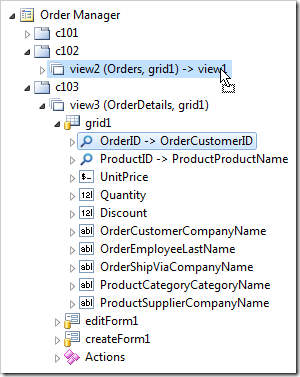
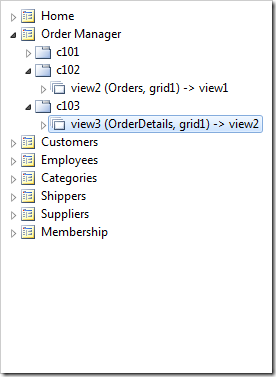
Dragging OrderID data field node onto 'view2' data view node.     'View3' has been configured as a detail of the master view 'view2'.

On the toolbar, press Browse.

Only the Customers data view is now visible on the Order Manager page.
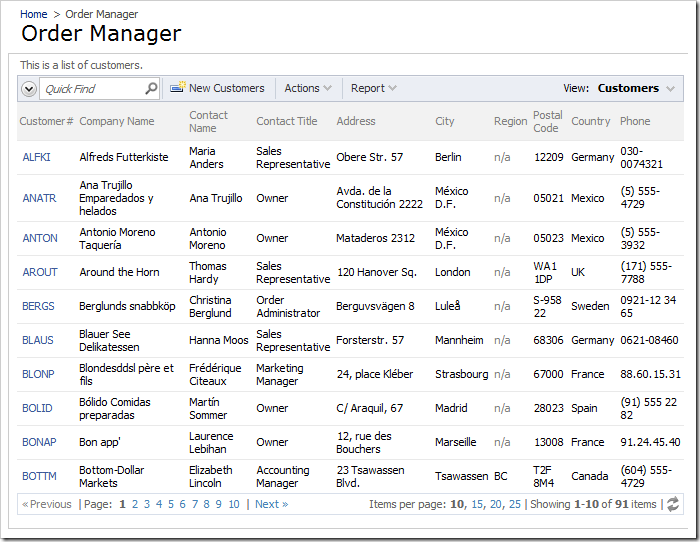
Order Manager page with only the list of customers displayed.

Select a record from the list of customers, and orders related to the selection will appear in a data view underneath.
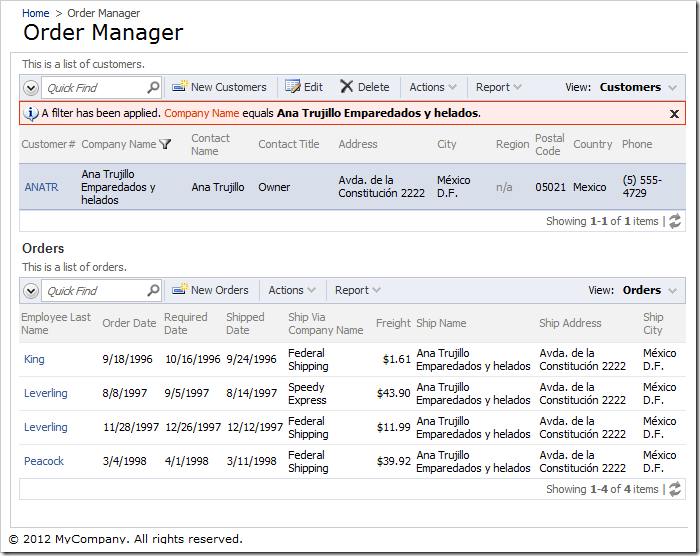
When a customer has been selected, a list of order will appear.

Select an order, and order details for that order will be displayed.
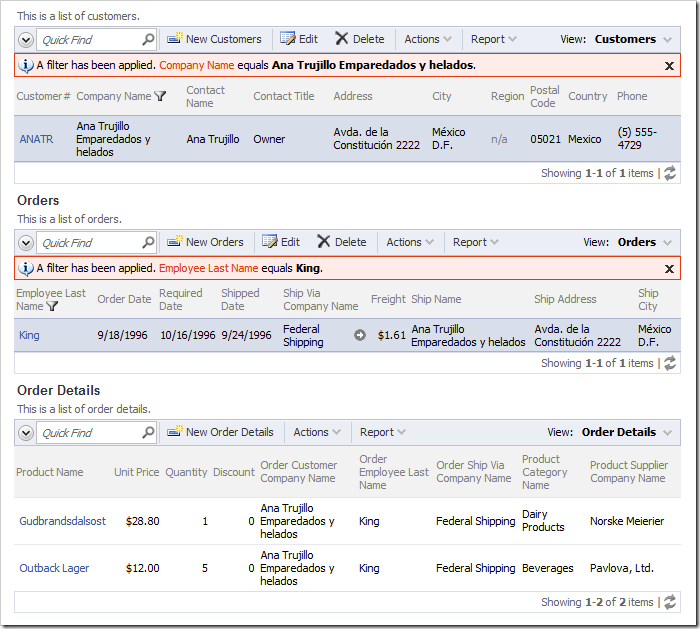
When an order is also selected, a list of relevant order details will be displayed.

Select a child order detail. The record will be displayed in a modal form.
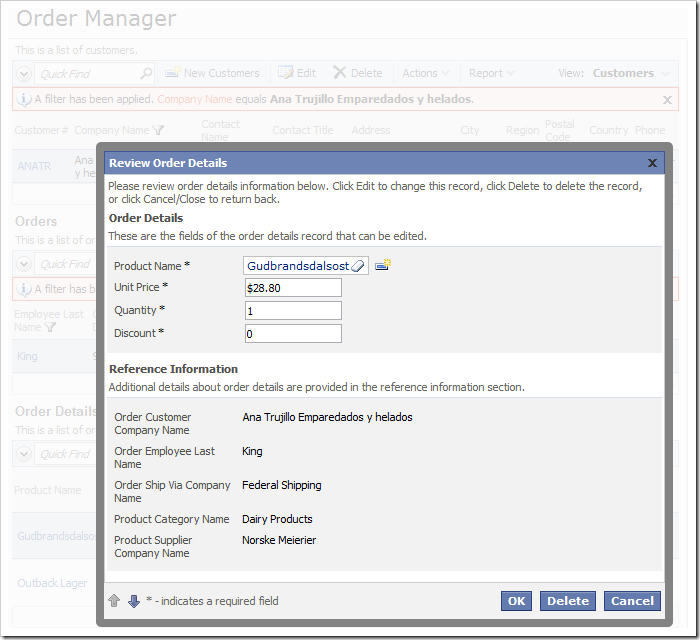
Opening an Order Detail record will display fields in a modal form.

If a master data view enters “New” mode, the child data views will automatically become hidden.

For example, if a new customer is created, the data views Orders and Order Details will be invisible. If a new order is created, only Order Details data view will disappear.
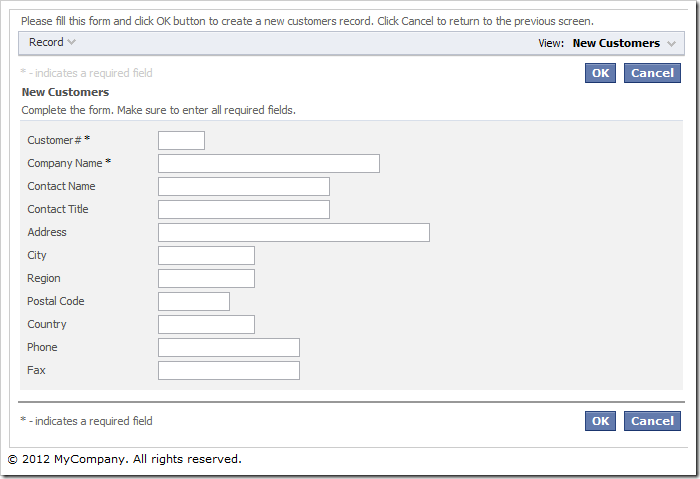
When a new customer is created, Orders and Order Details views are hidden.

Note that the field being used to filter must have Allow Query-by-Example enabled.

Saturday, September 1, 2012PrintSubscribe
Using the Project Designer

The Project Designer allows customizing the pages and data controllers of the web application.

To activate the Project Designer, click on a project name on the start page of the application generator.

Clicking on the name of a project on the Start page of Code On Time web application generator.

Then, click on the Design button.

Design option on the Project Action page of the web application generator.

The Project Designer will open.

On the left side of the screen is the Project Browser. The right side contains the Project Explorer.

Project Designer window opened. On the left side is the Project Browser. The right side contains the Project Explorer.

Project Browser

The Project Browser allows navigating the project configuration elements. The tabs display lists of pages, data controllers, user controls, commands, fields, views, and data fields.

Navigate to the properties page of an element by clicking on the link in the first column or using the context menu option Open.

Open context menu option for 'Home' page in the list of pages of the Project Designer.

The properties page of the project configuration element will open. The breadcrumbs in the path area above the Project Browser show the location of the object. The tabs at the top of the page will change to reflect project configuration elements that belong to the currently selected element.

'Home' page project configuration element properties page is open. The tabs have changed to allow access to child elements.

Quickly access the Learning System article for the selected project configuration element by clicking on the question mark icon in the top right corner.

Help icon will access the relevant learn article for the selected project configuration element.

The Project Explorer can be synchronized with the current Project Browser element by using the Sync command on the action bar or pressing Ctrl+Period keyboard shortcut (“Ctrl” key and “.” key).

Sync button on the action bar.     Home page node selected in the list of pages in the Project Explorer.

Project Explorer

The Project Explorer displays a logical hierarchy of project configuration elements separated into three tabs: Pages, Controllers, and User Controls.

Code On Time web application generator's Project Explorer displays a logical tree of project configuration elements separated into three tabs.

Double-click on a node in the Project Explorer or use the Open context menu option to display the properties page for the relevant element.

Open context menu on 'container2' node under Home page.     Container properties page open in the Project Browser.

Drag project elements to change the application configuration. As an alternative, you can use Cut/Copy/Paste options in the context menu of project configuration element nodes. These operations can be performed on multiple selected elements of the same type.

Dropping 'container2' node on the left side of 'container1'.     Node 'container2' has been placed before 'container1' node.

Node names of project configuration elements can be changed using the Rename context menu option.

Rename context menu option for 'container2' node in the Project Explorer.      'Container2' node is in Rename mode.

Navigate To

The Navigate To window will search for project configuration elements by property values as soon as you type a sample search criteria.

The window can be activated by clicking on the Navigate To icon on the Project Explorer toolbar or pressing the Ctrl+Comma keyboard shortcut (“Ctrl” key and “,” key).

Navigate To icon on the Project Browser toolbar.

The Navigate To window will open. Start typing search terms. Matching entries will appear as soon as you stop typing.

Navigate To window with the search terms 'products grid1'. Multiple results have been found.

Highlight a result and press OK or press Enter on the keyboard to open the properties page of the element in the Project Browser and have it highlighted in the Project Explorer.

View 'grid1' of Products controller selected in the Project Explorer.