Web App Generator

Labels
AI(22) AJAX(112) App Studio(10) Apple(1) Application Builder(245) Application Factory(207) ASP.NET(95) ASP.NET 3.5(45) ASP.NET Code Generator(72) ASP.NET Membership(28) Azure(18) Barcode(2) Barcodes(3) BLOB(18) Business Rules(3) Business Rules/Logic(140) BYOD(13) Caching(2) Calendar(5) Charts(29) Cloud(14) Cloud On Time(2) Cloud On Time for Windows 7(2) Code Generator(54) Collaboration(11) command line(1) Conflict Detection(1) Content Management System(12) COT Tools for Excel(26) CRUD(1) Custom Actions(1) Data Aquarium Framework(122) Data Sheet(9) Data Sources(22) Database Lookups(50) Deployment(22) Designer(178) Device(1) Digital Workforce(3) DotNetNuke(12) EASE(20) Email(6) Features(101) Firebird(1) Form Builder(14) Globalization and Localization(6) HATEOAS(13) How To(1) Hypermedia(3) Inline Editing(1) Installation(5) JavaScript(20) Kiosk(1) Low Code(3) Mac(1) Many-To-Many(4) Maps(6) Master/Detail(36) Micro Ontology(5) Microservices(4) Mobile(63) Mode Builder(3) Model Builder(3) MySQL(10) Native Apps(5) News(18) OAuth(9) OAuth Scopes(1) OAuth2(14) Offline(20) Offline Apps(4) Offline Sync(5) Oracle(11) PKCE(2) Postgre SQL(1) PostgreSQL(2) PWA(2) QR codes(2) Rapid Application Development(5) Reading Pane(2) Release Notes(186) Reports(48) REST(29) RESTful(33) RESTful Workshop(14) RFID tags(1) SaaS(7) Security(81) SharePoint(12) SPA(5) SQL Anywhere(3) SQL Server(26) SSO(1) Stored Procedure(4) Teamwork(15) Tips and Tricks(87) Tools for Excel(3) Touch UI(93) Transactions(5) Tutorials(183) Universal Windows Platform(3) User Interface(337) Video Tutorial(37) Web 2.0(100) Web App Generator(101) Web Application Generator(607) Web Form Builder(40) Web.Config(9) Workflow(28)
Archive
Blog
Web App Generator
Monday, June 25, 2012PrintSubscribe
Where is my Stuff?

The “Navigate To” feature allows direct navigation to an item in the Project Designer.

It can be activated by clicking on the Navigate To icon in the Project Explorer toolbar, or by pressing the “Ctrl+,” keyboard shortcut (press “Control” key simultaneously with “Comma” key).
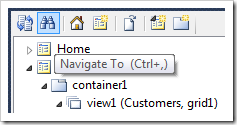
Navigate To icon on the Project Explorer toolbar.

This action will open the Navigate To window. In the Search terms field, enter text describing the project configuration element that you are trying to locate. The list of possible results will appear underneath as soon as you finish typing. The yellow box will show details of the selected item, with the search term highlighted.

Let’s try this feature with the Northwind sample.

When the word “Products” is typed in the Search terms field, the first matched result will be the Name property of the Products page.
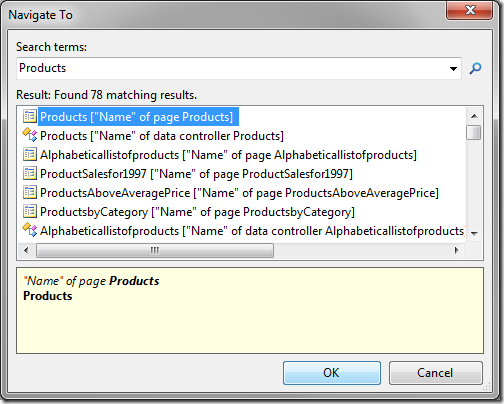
Navigate To with 'Products' as the search term.

Press OK button or the Enter key to navigate to the selected result. The node containing the result will be highlighted in the Project Explorer. The node will also open in the Project Designer.
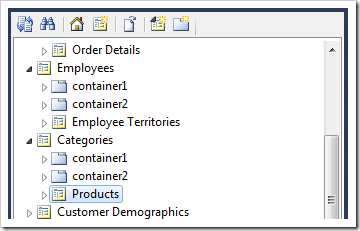
Products page selected in the Project Explorer.

Activate Navigate To, and search for “reportsto”. Results matching the exact phrase will be displayed in the Result box.
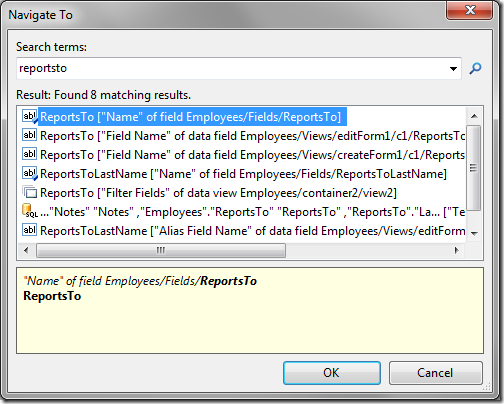
Navigate To with 'reportsto' as the search term.

Search for “reports to”. Exact matches will be listed first, followed by partial matches. Select the command from the result list. The yellow box will display all instances of each individual word.
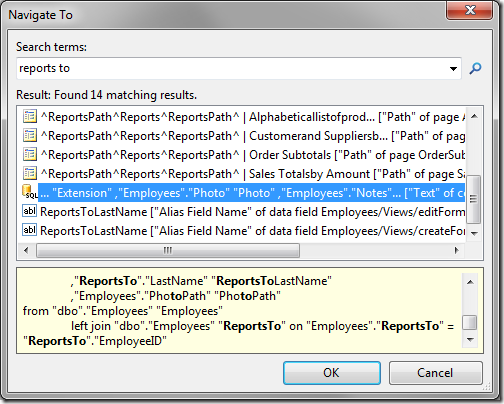
Navigate To with 'reports to' as the search term.

Search for “order details”. Matches of identifying attributes of project configuration elements will have the highest priority in the results. Combinations of the words in the search parameter come next.
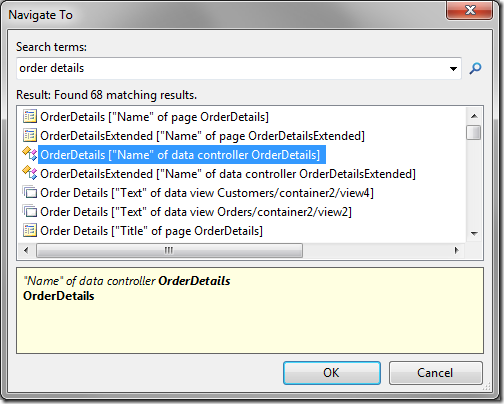
Navigate To with 'order details' as the search term.

Search for “order details”, wrapped in quotation marks. This will only find exact matches of the search term.
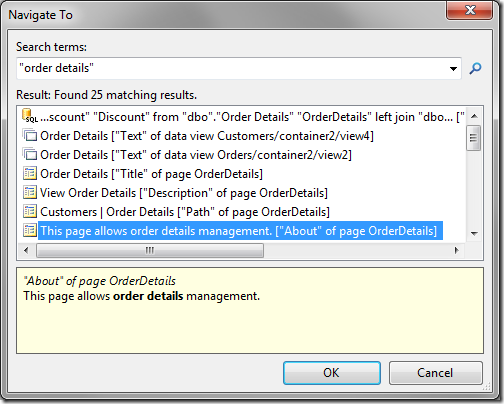
Navigate To with 'order details' including quotation marks as the search term.

You can mix quoted phrases and unquoted words, such as in the example below.
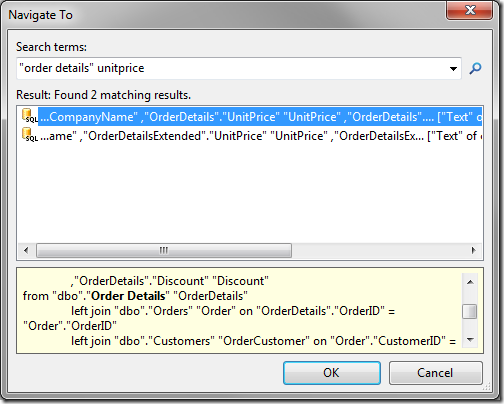
Navigate To allows search of combinations of quoted phrases and unquoted words.

Monday, June 4, 2012PrintSubscribe
Disabling Auto Complete in the Search Bar

The Advanced Search Bar enables auto complete for the text fields.

Last Name search field with Auto Complete enabled.

The feature may be disabled when necessary.

Start the Project Designer. In the Project Explorer, double-click on Employees / container1 / view1 / grid1 / LastName data field node.

LastName data field on 'view1' of Employees controller.

Make the following change:

Property New Value
Search Options
$disableautocomplete

Press OK to save the data field. On the toolbar, press Browse to generate the application.

When a web browser window opens, navigate to Employees page and open the advanced search bar. The Last Name search field no longer has Auto Complete capabilities enabled.

Last Name search field with Auto Complete disabled.

Monday, June 4, 2012PrintSubscribe
Data Lookup Capabilities

Code On Time web applications offer rich data lookup capabilities.

Fields with an Items Style of Lookup render as link within a textbox. The Eraser icon to the right of the link will clear the field. The New Record icon to the right of the textbox will create a new lookup item.

Data lookup field rendered as a link within a textbox.

When the link is clicked on, a lookup window will open. Users can perform Quick Find or use Advanced Search Bar.

Data lookup windows allows sorting, adaptive filtering, quick find, and advanced search bar.

A lookup field can be configured as an Auto Complete text box. When a user types in a value, the list of lookup items will be filtered. If an item is selected, it is inserted in the field. If no item is selected, the field value will revert.

Auto Complete data lookup fields will filter according to the parameter entered by the user.

Both Lookup and Auto Complete styles do not prefetch data items when the form view is loaded.

A lookup field can also be configured as a Check Box List. The values can come from a static list or a many-to-many table.

Data Lookups can be configured as a Check Box List so that the user can select multiple values.

Data lookup fields can be rendered as a Radio Button List.

Data lookup rendered as a radio button list.

Consult the following list of properties when configuring a lookup field.

Property Description
Items Style Select the type of Items Style for the lookup. The options include: Auto Complete, Check Box, Check Box List, Drop Down List, List Box, Lookup, Radio Button List, User ID Lookup, User Name Lookup.
Items Data Controller Select the controller data source.
Items Data View Select the data view that will be displayed for the lookup.
Data Value Field Select the value that the field will save to the database.
Data Text Field Select the text that the field will display to the end user.
New Data View If the user is allowed to create new lookup items, this will specify the data view that will be used. A blank value will hide the New Record icon.
Copy You can copy field values from the selected lookup item into the current record.
Search On Start Enabling this property will open the lookup in search mode.
Activate If Blank Enabling this property will open the lookup if the field is blank when a user opens the form.
Lookup Window Description Specify the text that will be displayed above the lookup.
Page Size Specify how many lookup items will be displayed at one time in the lookup modal window.
Search By First Letter Allows you to search for a lookup item by the first letter.