Web App Generator

Labels
AI(22) AJAX(112) App Studio(10) Apple(1) Application Builder(245) Application Factory(207) ASP.NET(95) ASP.NET 3.5(45) ASP.NET Code Generator(72) ASP.NET Membership(28) Azure(18) Barcode(2) Barcodes(3) BLOB(18) Business Rules(3) Business Rules/Logic(140) BYOD(13) Caching(2) Calendar(5) Charts(29) Cloud(14) Cloud On Time(2) Cloud On Time for Windows 7(2) Code Generator(54) Collaboration(11) command line(1) Conflict Detection(1) Content Management System(12) COT Tools for Excel(26) CRUD(1) Custom Actions(1) Data Aquarium Framework(122) Data Sheet(9) Data Sources(22) Database Lookups(50) Deployment(22) Designer(178) Device(1) Digital Workforce(3) DotNetNuke(12) EASE(20) Email(6) Features(101) Firebird(1) Form Builder(14) Globalization and Localization(6) HATEOAS(13) How To(1) Hypermedia(3) Inline Editing(1) Installation(5) JavaScript(20) Kiosk(1) Low Code(3) Mac(1) Many-To-Many(4) Maps(6) Master/Detail(36) Micro Ontology(5) Microservices(4) Mobile(63) Mode Builder(3) Model Builder(3) MySQL(10) Native Apps(5) News(18) OAuth(9) OAuth Scopes(1) OAuth2(14) Offline(20) Offline Apps(4) Offline Sync(5) Oracle(11) PKCE(2) Postgre SQL(1) PostgreSQL(2) PWA(2) QR codes(2) Rapid Application Development(5) Reading Pane(2) Release Notes(186) Reports(48) REST(29) RESTful(33) RESTful Workshop(14) RFID tags(1) SaaS(7) Security(81) SharePoint(12) SPA(5) SQL Anywhere(3) SQL Server(26) SSO(1) Stored Procedure(4) Teamwork(15) Tips and Tricks(87) Tools for Excel(3) Touch UI(93) Transactions(5) Tutorials(183) Universal Windows Platform(3) User Interface(337) Video Tutorial(37) Web 2.0(100) Web App Generator(101) Web Application Generator(607) Web Form Builder(40) Web.Config(9) Workflow(28)
Archive
Blog
Web App Generator
Wednesday, May 30, 2012PrintSubscribe
Data Views: Search On Start

By default, grid and data sheet views will open the first page of records.

Suppliers grid view showing the first page of suppliers.

If the number of records is small, then it works great. If the number of records is very large, then it is pointless to display the first page before the users specify what they are looking for. The data view can be configured to not request any records and have Advanced Search Bar open by default.

Start the Project Designer. Double-click on Region / Suppliers / container1 / view1 data view node.

'View1' on Suppliers page of Project Explorer.

Change the following property:

Property New Value
Search On Start True

Press OK to save the data view, and click on Browse to generate the web application.

When the web page opens in the browser, navigate to the Suppliers page. The data view will open in search mode.

Suppliers grid view opened in search mode with Advanced Seearch Bar displayed and no records requested.

You can pull the first page of data by pressing the Search button without specifying any search parameters. If you enter parameters, then the matching records will show up.

Pressing 'Search' on the search bar will request the first page of records.

If the search bar is disabled, then the Quick Find will be available to enter the initial search criteria.

Search On Start allows users to enter criteria in the Quick Find if Advanced Search Bar is unavailable.

Wednesday, May 30, 2012PrintSubscribe
Controlling Data Field Search Modes

The Advanced Search Bar allows the user to combine specific search parameters in order to find data. When the search bar is first opened, the first three data fields in the grid view are displayed.
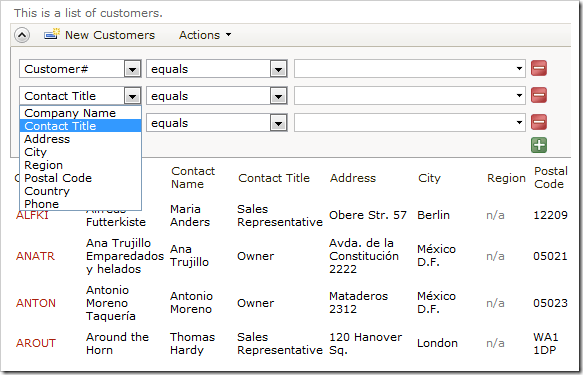
Customers advanced search bar with default Search Mode settings.

The end user can change the filter field using the field name dropdown. By default, all data fields that exist in the grid view are searchable. The user can be forced to enter a value in some search fields, while other fields may be suggested as additional options when the search bar opens for the first time. Users can also be prevented from searching by specific fields.

Start the Project Designer. Right-click on Customers / container1 / view1 / grid1 view node, and click Show All Data Fields option.
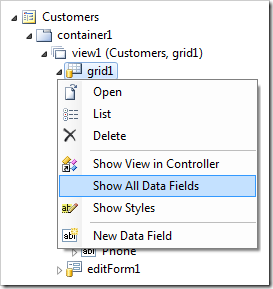
Show all data fields for grid1 view of Customers controller.

Make the following changes to the list of data fields:

Field Name Search
CompanyName Required
ContactName Forbidden
ContactTitle Forbidden
Address Suggested
City Suggested

Save the data fields, and select Browse on the tool bar to regenerate the web application.

When the browser window opens, navigate to the Customers page and open the advanced search bar. The data fields with Search Mode of “Required” or “Suggested” will be displayed initially.
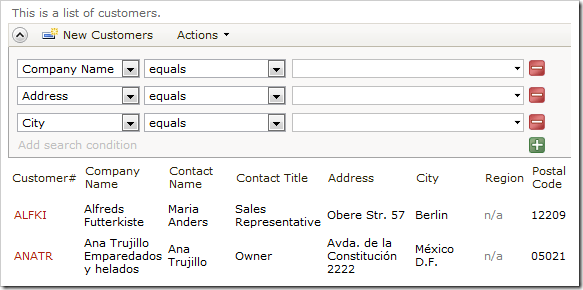
Advanced search bar of Customers grid displaying required and suggested fields.

The first field is required, and cannot be changed.
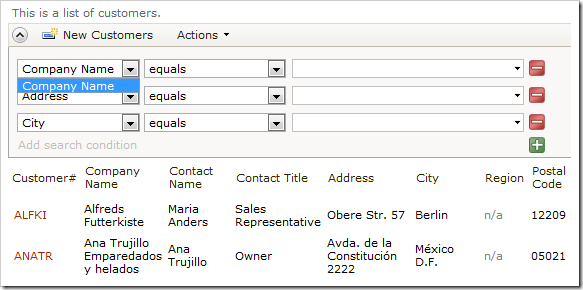
The required field cannot be changed.

If a search is performed without entering a parameter into required Company Name field, the user will be informed that the field is required.
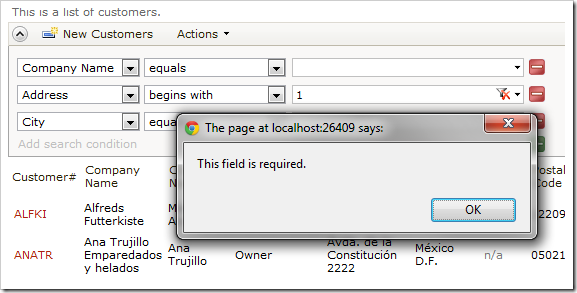
Search performed without entering a parameter into the required field will give a prompt to the end user.

Fields marked as “Forbidden” are not displayed on the list of fields available for search.
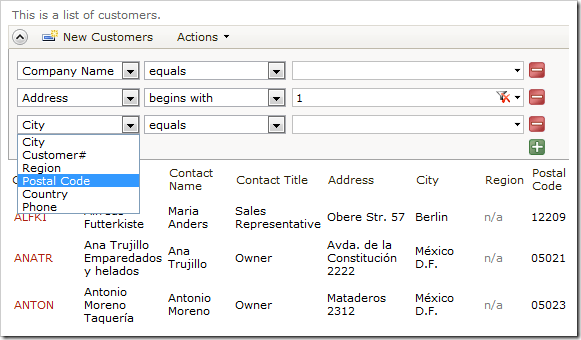
Forbidden fields are not displayed on the list of fields.

Wednesday, May 23, 2012PrintSubscribe
Navigation Menus, Role-Specific Data Views

Code On Time release 6.0.0.28 introduces the following features, improvements, and bug fixes:

  • Advanced two-level menus are now available in Premium and Unlimited editions.
     
  • Data views now support "Roles" property to allow additional visibility control. The "Roles" are evaluated on the server and work together with VisibleWhen property.
     
  • Property BusinessRules.UserEmail can be referenced as @BusinessRules_UserEmail in SQL and Email Business Rules.
     
  • Method BusinessRules.AddMailAddresses has been enhanced to accept "loosely" specified list of email addresses separated with comma and semicolon with optional display names.
     
  • jQuery 1.7.2 is now integrated in the client library. The future releases will add support for jQuery UI and JavaScript Business Rules.
     
  • Application framework matches methods with RowBuilder attribute first as an exact controller name match to the requested controller and as a regex match thereafter.
     
  • Page property Title is now optional. If the value is not specified, then the page name is used.
     
  • DotNetNuke Factory will load the projet in correct version of Visual Studio when both VS 2008 and VS 2010 are installed on the same computer when a compilation error has occurred.
     
  • Modal forms will retain scrolling when lookup fields are changed.
     
  • It is possible to reference master views in the visibility expressions attached to all objects.
     
    The implicit master field can be referenced as
     Master.FieldName
  • The explicit alternative is
    view1.FieldName

  • It is now possible to create a soft filter by Null value using SQL Business Rules defined as follows:
     
    if @BusinessRules_Tags is null
    begin
       set @BusinessRules_Tags = 'Tagged'
      set @Region_Filter_Equals = 'null'
    end

    The rule will work with Customers controller in the Northwind sample.
     
  • Method ControllerNodeSet.CreateBusinessRules now support "name" attribute to allow dynamic creation of "named" business rules.
     
  • Removed incorrect reference to aspnet_User controller from the Membership Manager.
     
  • Quick Find will work even if Query by Example is set to "False" on the first field in the data view.
     
  • Fixed the issue with the "soft" filter being require to have a type of "array of objects".