user interface

Labels
AI(22) AJAX(112) App Studio(10) Apple(1) Application Builder(245) Application Factory(207) ASP.NET(95) ASP.NET 3.5(45) ASP.NET Code Generator(72) ASP.NET Membership(28) Azure(18) Barcode(2) Barcodes(3) BLOB(18) Business Rules(3) Business Rules/Logic(140) BYOD(13) Caching(2) Calendar(5) Charts(29) Cloud(14) Cloud On Time(2) Cloud On Time for Windows 7(2) Code Generator(54) Collaboration(11) command line(1) Conflict Detection(1) Content Management System(12) COT Tools for Excel(26) CRUD(1) Custom Actions(1) Data Aquarium Framework(122) Data Sheet(9) Data Sources(22) Database Lookups(50) Deployment(22) Designer(178) Device(1) Digital Workforce(3) DotNetNuke(12) EASE(20) Email(6) Features(101) Firebird(1) Form Builder(14) Globalization and Localization(6) HATEOAS(13) How To(1) Hypermedia(3) Inline Editing(1) Installation(5) JavaScript(20) Kiosk(1) Low Code(3) Mac(1) Many-To-Many(4) Maps(6) Master/Detail(36) Micro Ontology(5) Microservices(4) Mobile(63) Mode Builder(3) Model Builder(3) MySQL(10) Native Apps(5) News(18) OAuth(9) OAuth Scopes(1) OAuth2(14) Offline(20) Offline Apps(4) Offline Sync(5) Oracle(11) PKCE(2) Postgre SQL(1) PostgreSQL(2) PWA(2) QR codes(2) Rapid Application Development(5) Reading Pane(2) Release Notes(186) Reports(48) REST(29) RESTful(33) RESTful Workshop(14) RFID tags(1) SaaS(7) Security(81) SharePoint(12) SPA(5) SQL Anywhere(3) SQL Server(26) SSO(1) Stored Procedure(4) Teamwork(15) Tips and Tricks(87) Tools for Excel(3) Touch UI(93) Transactions(5) Tutorials(183) Universal Windows Platform(3) User Interface(337) Video Tutorial(37) Web 2.0(100) Web App Generator(101) Web Application Generator(607) Web Form Builder(40) Web.Config(9) Workflow(28)
Archive
Blog
user interface
Saturday, April 21, 2012PrintSubscribe
Confirming User Actions

Various user interface actions may lead to a serious impact on application data and require additional visual confirmation. The standard action Delete is a good example. End users are presented with the standard browser window to confirm the action.

Standard simple confirmation is displayed when a user initiates 'Delete' action in a Code On Time web application

Application client library automatically assigns the standard “Delete?” confirmation message to a Delete action if the explicit confirmation is not defined in the data controller.

You can set a confirmation message for any action in Project Designer.

Create the Northwind sample, activate the project design mode and select Suppliers / Actions / ag1 (Grid) /a3 node on the Controllers tab in the Project Explorer.

Actions  'ag1/a3', 'ag2/a2', and 'ag4/a2' have their 'Command Name' property set to 'Delete'

Change the properties of the action as follows and click OK button.

Property New Value
Confirmation Delete “{CompanyName}” supplier?

Notice that there are several other ways to delete a record. If you want to displays the exact same confirmation message, then make sure to change the Confirmation property of actions Suppliers / Actions / ag2 (Form) / a3 and Suppliers / Actions / ag4 (ActionBar) – Edit/Delete / a2.

If an action with confirmation is activated, then the client library will parse the content of the confirmation message and replace any matching field names enclosed in curly brackets with the values from the  current data row.

The new confirmation message is displayed if you generated the application and try deleting a supplier.

A customized simple confirmation message in a Code On Time web application

A developer can assign a consistent message to all actions with the command name Delete by implementing a data controller virtualization.

Thursday, April 19, 2012PrintSubscribe
Conditional Visibility of Data Views

Code On Time web applications allow flexible configuration of complex master/detail pages. Child views are automatically displayed when a master record is selected. There is no limit on the number master/detail levels on a page.

Consider the following master/detail page Customers with the Classic layout. The top data view displays a list of customers with one customer selected. Child data views Orders, Customer Demo, and Order Details are accessible via tabs and displayed related child records. This screen shot is taken from the Northwind sample.
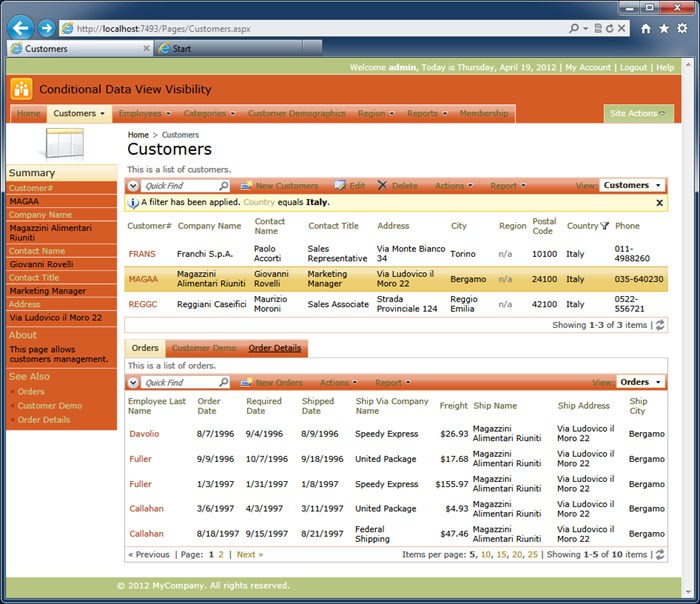
A classical master-detail layout in a Code On Time web application

There are situations when a detail view must be displayed only if the master record meets a certain criteria.

Consider the master list of employees from the same sample. Two employees in the list have other employees reporting to them. Mr. Fuller leads the company with top managers reporting directly to him. Mr. Buchanan leads the sales team and have subordinates as well.
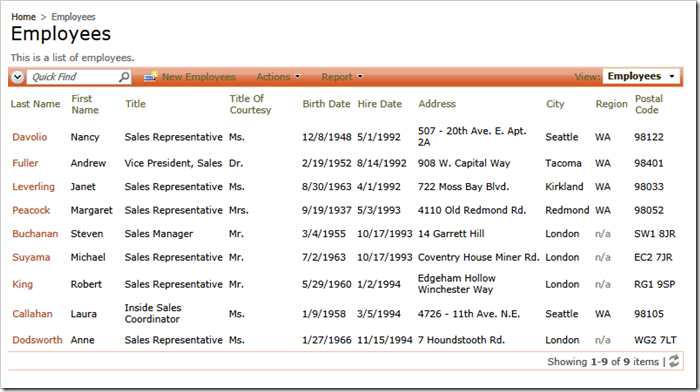
The master data view of employees in the Northwind sample created with Code On Time web application generator

The Employees page does have a detail data view of employees linked to the master data view shown above. It makes sense to create a condition that will make the detail data view visible if the master employee’s Title is “Vice President, Sales” or “Sales Manager”.

Select the project on the start page of the application generator and choose Design option.

Select the Employees / container2 / view2 (Employees, grid1) data view node in Project Explorer on Pages tab and change its properties as follows.
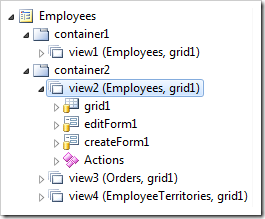
Child data view 'view2' on a master/detail page 'Employees' selected in Project Explorer

Property New Value
Visible When
[Master.Title] == 'Vice President, Sales' || [Master.Title] == 'Sales Manager'

Click OK button to save the changes and Browse the application. Navigate to the Employees page and you will notice that the child view in the master/detail relationship Employees.ReportsTo => Employees.EmployeeID is working in conditional fashion. The child data view Employees is not displayed when an employee other than Fuller or Buchanan is selected.

The expression in Visible When property is written in JavaScript. This expression is being evaluated at runtime. The word Master refers to the master data view. Any name following after “Master.” placed in square brackets is considered to be the value of the field in the master data view, whatever that master data view happens to be.

If a master record does not meet the criteria, then the child data view Employees / container2 / view2 (Employees, grid1) is hidden on the page.
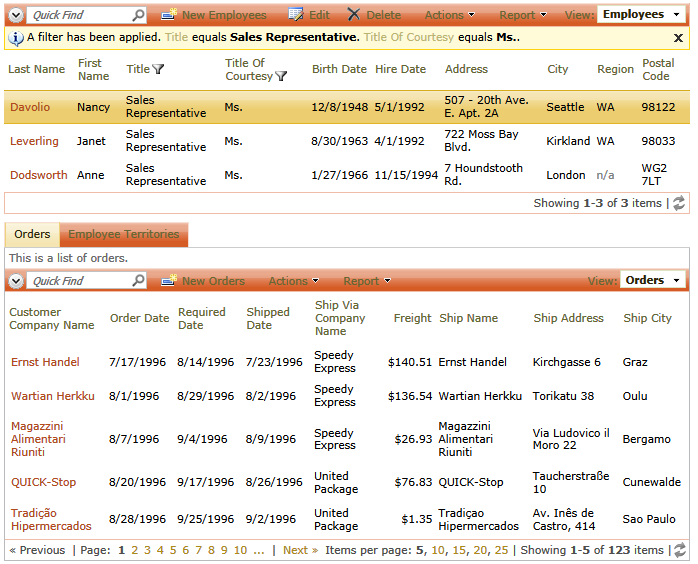
Master data view 'view1' has only two visible detail data views if the JavaScript expression in 'Visible When' property of 'view2' is evaluated as 'false'

If a master record does meet the criteria, then the child data view Employees / container2 / view2 (Employees, grid1) is visible on the page along with view3 (Orders, grid1) and view4 (EmployeeTerritories, grid1).
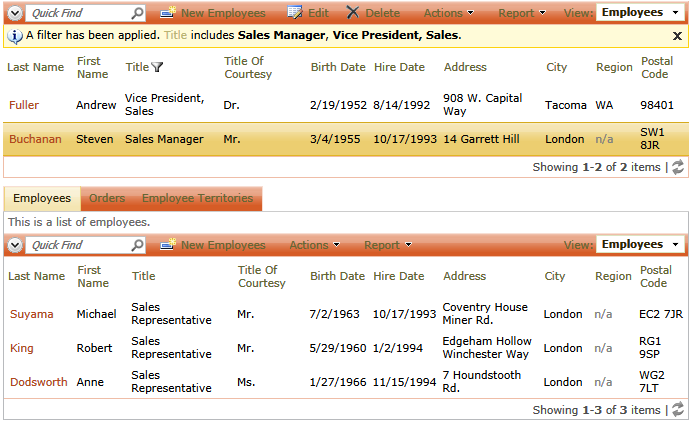
Master data view 'view1' has three visible detail data views if the JavaScript expression in 'Visible When' property of 'view2' is evaluated as 'true'

Tuesday, April 17, 2012PrintSubscribe
Configuring Data View Selection Mode

The selection mode of data rows on all pages of your application can be controlled in the Project Wizard settings.

You can also configure the selection mode for the specific data views.

Create a Northwind sample and activate the project Designer.

Select Employees / container1 / view1 (Employees, grid1) node on the Pages tab in the Project Explorer.

Data view selected in the Project Explorer

Change Selection Mode property and click OK button to save the changes.

Data view 'Selection Mode' property in Project Designer

Click Browse on the Project Designer toolbar to view the application.

Employees data view with the Selection Mode set to Single.

Employees data view with the 'Selection Mode' set to 'Single'.

Employees data view with the Selection Mode set to Multiple.

Employees data view with the 'Selection Mode' set to 'Multiple'.

The standard action Delete supports the Multiple selection mode. Multiple selection also works with batch editing of records.

You can create custom business rules or an SQL action to implement business logic applicable to multiple selected data rows.