Application Builder

Labels
AI(12) AJAX(112) App Studio(10) Apple(1) Application Builder(245) Application Factory(207) ASP.NET(95) ASP.NET 3.5(45) ASP.NET Code Generator(72) ASP.NET Membership(28) Azure(18) Barcode(2) Barcodes(3) BLOB(18) Business Rules(3) Business Rules/Logic(140) BYOD(13) Caching(2) Calendar(5) Charts(29) Cloud(14) Cloud On Time(2) Cloud On Time for Windows 7(2) Code Generator(54) Collaboration(11) command line(1) Conflict Detection(1) Content Management System(12) COT Tools for Excel(26) CRUD(1) Custom Actions(1) Data Aquarium Framework(122) Data Sheet(9) Data Sources(22) Database Lookups(50) Deployment(22) Designer(178) Device(1) Digital Workforce(3) DotNetNuke(12) EASE(20) Email(6) Features(101) Firebird(1) Form Builder(14) Globalization and Localization(6) HATEOAS(3) How To(1) Hypermedia(2) Inline Editing(1) Installation(5) JavaScript(20) Kiosk(1) Low Code(3) Mac(1) Many-To-Many(4) Maps(6) Master/Detail(36) Micro Ontology(5) Microservices(4) Mobile(63) Mode Builder(3) Model Builder(3) MySQL(10) Native Apps(5) News(18) OAuth(9) OAuth Scopes(1) OAuth2(13) Offline(20) Offline Apps(4) Offline Sync(5) Oracle(11) PKCE(2) Postgre SQL(1) PostgreSQL(2) PWA(2) QR codes(2) Rapid Application Development(5) Reading Pane(2) Release Notes(185) Reports(48) REST(29) RESTful(30) RESTful Workshop(15) RFID tags(1) SaaS(7) Security(81) SharePoint(12) SPA(6) SQL Anywhere(3) SQL Server(26) SSO(1) Stored Procedure(4) Teamwork(15) Tips and Tricks(87) Tools for Excel(3) Touch UI(93) Transactions(5) Tutorials(183) Universal Windows Platform(3) User Interface(338) Video Tutorial(37) Web 2.0(100) Web App Generator(101) Web Application Generator(607) Web Form Builder(40) Web.Config(9) Workflow(28)
Archive
Blog
Application Builder
Thursday, January 3, 2013PrintSubscribe
Adding a Database View

Database views are composed of a result set for a query accessible as a virtual table. This query is computed from other tables in the database. Code On Time web application generator creates read-only data controllers from views. It is possible to add update and insert capabilities to these controllers.

Let’s create a new database view in the Northwind database based on Employees table, add this view to a project, and enable editing.

Creating the View

Start SQL Server Management Studio. In the Object Explorer, right-click on Databases / Northwind and press New Query.
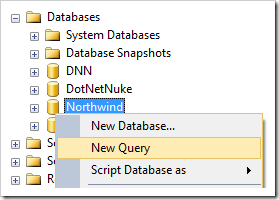
Creating a new query for Northwind database.

Paste in the following script:

create view EmployeeList as
select 
    Employees.EmployeeID, 
    Employees.LastName + ', ' + Employees.FirstName FullName,
    Employees.Title, 
    Employees.TitleOfCourtesy,
    (select COUNT(*) 
     from Orders 
     where EmployeeID = Employees.EmployeeID
    ) NumberOfOrders,
    Employees.BirthDate,
    Employees.HireDate,
    Employees."Address",
    Employees.City,
    Employees.Region,
    Employees.PostalCode,
    Employees.Country,
    Employees.HomePhone,
    Employees.Extension
from Employees

The script will create a view composed of several columns from the Employees table. In addition, the FirstName and LastName columns will be concatenated into the FullName column, and a count of orders will be displayed in NumberOfOrders column.

On the toolbar, press Execute to run the script.

Adding View to Project

Start the web application generator. Click on the project name, and press Refresh. Check the box next to the view dbo.EmployeeList, and confirm the refresh.
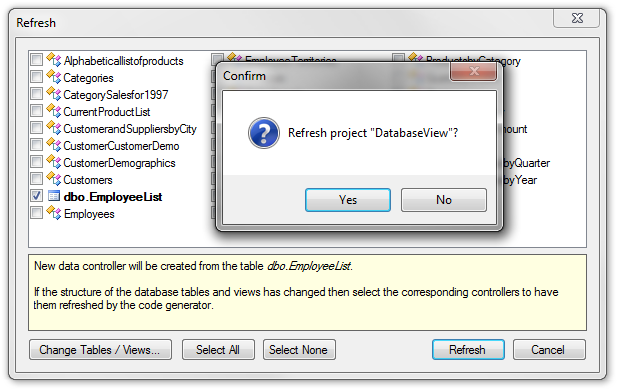
Adding 'dbo.EmployeeList' to the project.

On the Summary page, press Design to activate the Project Designer.

Defining Primary Key

The new controller is based on a database view and does not have a primary key explicitly defined. This means that individual rows cannot be selected or edited. Specifying a primary key from within the Project Designer will enable this functionality.

In the Project Explorer, switch to the Controllers tab. Double-click on EmployeeList / Fields / EmployeeID* (Int32, read-only) node.
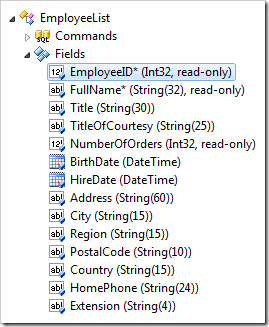
Field 'EmployeeID' of EmployeeList controller.

Mark the field as a primary key.

Property New Value
Defines the primary key. true

Press OK to save the field.

Defining Base Table Name

In order to ensure that the Employees table will be updated when a user changes a record in the EmployeeList controller, the command must have the Table Name property explicitly specified.

Double-click on EmployeeList / Commands / command1 (Text) node.
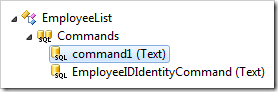
'Command1' of EmployeeList controller.

Specify a table.

Property New Value
Table Name dbo.Employees

Press OK to save changes.

Next, right-click on EmployeeList / Commands / command1 (Text) and select Reset to Baseline. This will ensure that any changes to the database view will be reflected in the command text when the data controller is refreshed.
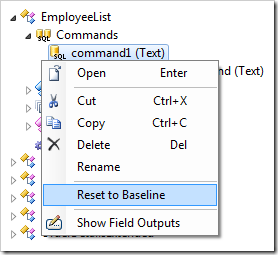
Resetting command text to the baseline for 'EmployeeList' controller.

Viewing the Results

On the toolbar, press Browse. Navigate to Reports | Employee List page.

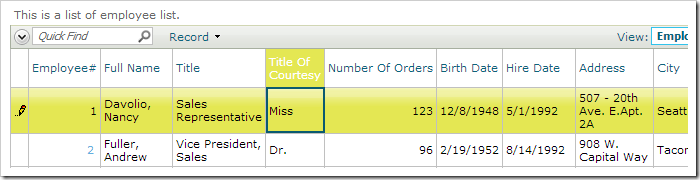
Click on Actions | Show in Data Sheet to activate data sheet mode. Double-click a cell and change the value.
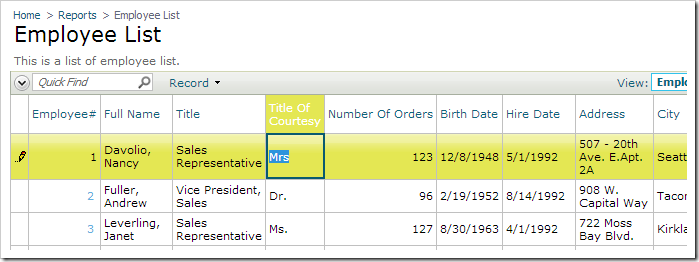
Changing the value of a field in Employee List controller.

Press Enter key to save.

Saving the changed value.

Navigate to the Employees page. Note that the corresponding row of Employees database table has been updated.
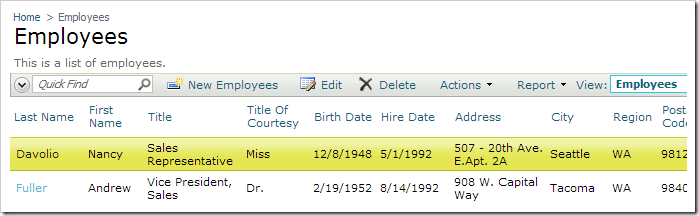
The employee record has been updated.

Wednesday, January 2, 2013PrintSubscribe
Restrict Access to Pages with “Roles” Property

Access to pages can be restricted by user roles with the “Roles” property. Any user that does not belong to a specified list of roles will not see the page in the navigation menu or be able to access the page by URL.

The Categories | Products page is visible for all authorized users in a default web application created from Northwind database. Let’s configure this page to only be visible for users with the role of “Administrators”.

Products page is available in the navigation menu.

Start the Project Designer. In the Project Explorer, double-click on Categories / Products page node.

Products page node in the Project Explorer.

Change the Roles property:

Property Value
Roles Administrators

Press OK to save. On the toolbar, press Browse.

Log in using the standard user account (user / user123%). The Products page will not be available in the navigation menu.

Products page is not available on the navigation menu.

If the URL is accessed directly (~/Pages/Products.aspx), the application will redirect you to the Home page.

When the user tries to access Products page by URL, the application will redirect to the Home page.

Log in with the administrative account (admin / admin123%). The page will now be available.

Products page is available in the navigation menu when logged in as 'admin'.

Wednesday, January 2, 2013PrintSubscribe
Handling Row Selection in a Data View

The key of the selected row of a data view can be accessed using JavaScript.

Start the Project Designer. On the Project Explorer toolbar, click on the New Page icon.

Creating a new page in the Project Explorer.

Use these values for the new page:

Property Value
Name ProductsTest
Roles n/a

Press OK to save. In the Project Explorer, drop Products Test page node on the right side of Home page node to place it second in the hierarchy.

Dropping page 'Products Test' on the right side of 'Home'.     Page 'Products Test' has been placed second in the list of pages.

Right-click on Products Test node, and press New Container.

Creating a new container in the page.

Use the default values and press OK to save.

Right-click on Products Test / c101 container node, and press New Control.

Creating a new control in the container.

Next to the User Control property, click on the New User Control icon.

Activating the 'New User Control' icon.

Assign a name to the user control:

Property Value
Name SelectedKeyBox

Press OK to save and insert it into the User Control property. Press OK again to add the control to the page.

Next, switch to the Controllers tab. Right-click on Products controller and press Copy.

Using the 'Copy' context menu option for Products controller.

Switch back to the Pages tab. Right-click on Products Test / c101 container node, and press Paste. A Products data view will be instantiated.

Pasting onto the container in Products Test page.     Products data controller instantiated as a data view.

On the toolbar, press Browse to generate the user control file. When done, right-click on Products Test / c101 / control1 – SelectedKeyBox node and press Edit in Visual Studio.

Editing the user control in Visual Studio.

The file will be opened in Visual Studio. Replace the code after the <%@ Control %> element with the following:

<script type="text/javascript">
    $(window).ready(
    setTimeout(function () {
        var dataView = Web.DataView.find('Products', 'Controller');
        if (dataView)
            dataView.add_selected(function () {
                $('.MyTextBox').val(dataView.get_selectedKey())
            });
    }, 50)
    );
</script>
<asp:TextBox type="text" ID="TextBox1" runat="server" class="MyTextBox"></asp:TextBox>

The user control will consist of an empty textbox. When the user selects a row, the selected key will be assigned as the value of the textbox.

Save the file. Switch to the open browser tab with the web app. Refresh the page, and navigate to Products Test page.

A textbox will be present above the list of products. Click on a row, and the ProductID will be displayed in the textbox.

The ProductID of the selected row is displayed in the textbox.

Clicking on another row will update the value in the textbox.

Clicking on another row will update the textbox.