The most robust method to ensure separation between “draft” and “committed” data is physical segregation of draft data in dedicated staging tables. When data is ready to be committed, it is moved from draft tables to the primary database tables. For example, orders in the Northwind sample database are stored in Orders and OrderDetails – the primary tables. DraftOrders and DraftOrderDetails tables will be created in order to store draft orders.
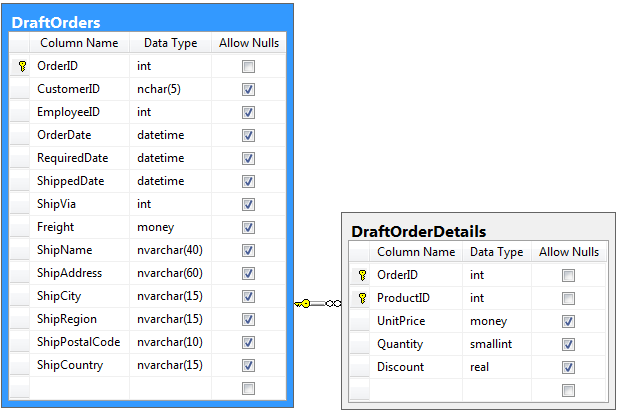
A custom action in DraftOrders controller will copy the draft order and order details to the primary tables, and delete the draft data rows.
Adding the DraftOrders and DraftOrderDetails Tables
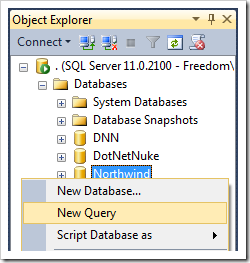
Start SQL Server Management Studio. In the Object Explorer window, right-click on Databases / Northwind node, and press New Query.
Paste the following script into the query window:
create table dbo.DraftOrders(
    OrderID int IDENTITY(1,1) not null,
    CustomerID nchar(5) null,
    EmployeeID int null,
    OrderDate datetime null,
    RequiredDate datetime null,
    ShippedDate datetime null,
    ShipVia int null,
    Freight money null,
    ShipName nvarchar(40) null,
    ShipAddress nvarchar(60) null,
    ShipCity nvarchar(15) null,
    ShipRegion nvarchar(15) null,
    ShipPostalCode nvarchar(10) null,
    ShipCountry nvarchar(15) null,
    PRIMARY KEY (OrderID)
)
go

alter table dbo.DraftOrders add foreign key(CustomerID)
references dbo.Customers (CustomerID)
go

alter table dbo.DraftOrders  add foreign key(EmployeeID)
references dbo.Employees (EmployeeID)
go

alter table dbo.DraftOrders  add foreign key(ShipVia)
references dbo.Shippers (ShipperID)
go

create table dbo.DraftOrderDetails(
    OrderID int,
    ProductID int,
    UnitPrice money default (0),
    Quantity smallint default (1),
    Discount real default (0),
    primary key (OrderID, ProductID)
)
go

alter table dbo.DraftOrderDetails add foreign key (OrderID)
references dbo.DraftOrders (OrderID)
go

alter table dbo.DraftOrderDetails add foreign key (ProductID)
references dbo.Products (ProductID)
go
This script will create DraftOrders and DraftOrderDetails tables with the same columns as the primary Orders and OrderDetails tables. It also recreates the relationships with lookup tables – Customers, Employees, Shippers, and Products.
Run the script by pressing Execute on the toolbar.
Creating Draft Order Form
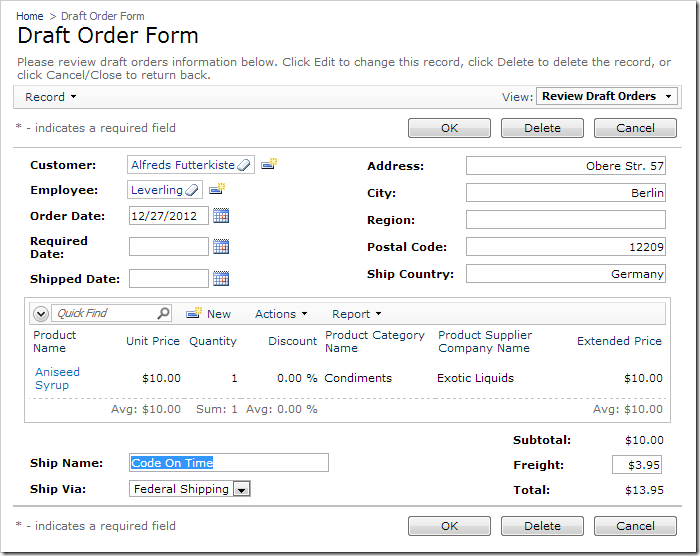
Follow the Order Form Sample tutorial to create a draft order form. Make sure to use DraftOrders and DraftOrderDetails instead of Orders and OrderDetails when implementing the form.
Creating “Submit Order” Action
The next step is to create an action that will move the draft order and draft order details into the original Orders and OrderDetails tables.
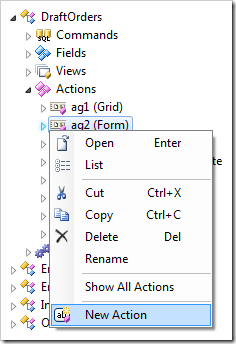
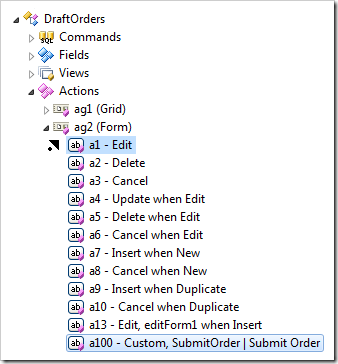
In the Project Designer, switch to the Controllers tab. Right-click on DraftOrders / Actions / ag2 (Form) node, and press New Action.
Assign the following values:
| Property |
Value |
| Command Name |
Custom |
| Command Argument |
SubmitOrder |
| Header Text |
Submit Order |
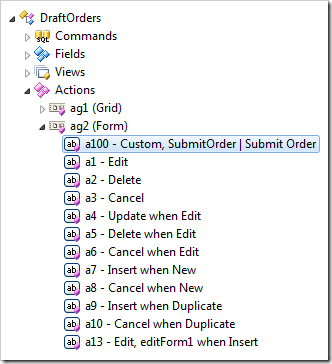
Press OK to save. Drop a100 – Custom, SubmitOrder | Submit Order node to the left side of the first action in ag2 to place it first in the group.
Handling the Action
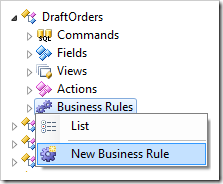
Right-click on DraftOrders / Business Rules node, and press New Business Rule.
Assign these values:
| Property |
Value |
| Type |
SQL |
| Command Name |
Custom |
| Command Argument |
SubmitOrder |
In the Script property, enter the following:
begin transaction;

begin try
    -- move submitted order from DraftOrders to Orders
    insert into Orders (CustomerID, EmployeeID, OrderDate,
                        RequiredDate, ShippedDate, ShipVia,
                        Freight, ShipName, ShipAddress,
                        ShipCity, ShipRegion, ShipPostalCode,
                        ShipCountry)
    select CustomerID, EmployeeID, OrderDate, RequiredDate,
            ShippedDate, ShipVia, Freight, ShipName,
            ShipAddress, ShipCity, ShipRegion, ShipPostalCode,
            ShipCountry
    from DraftOrders
    where OrderID = @OrderID;

    -- find ID of committed order
    declare @NewOrderID int;
    select @NewOrderID = @@IDENTITY;

    -- move submitted order details from DraftOrderDetails to "Order Details"
    insert into "Order Details" (OrderID, ProductID, UnitPrice,
                                Quantity, Discount)
    select @NewOrderID, ProductID, UnitPrice,
            Quantity, Discount
    from DraftOrderDetails
    where OrderID = @OrderID;

    -- delete draft order and order details
    delete from DraftOrderDetails
    where OrderID = @OrderID;

    delete from DraftOrders
    where OrderID = @OrderID;

    commit transaction;

    -- refresh the page
    set @Result_NavigateUrl = 'OrderForm.aspx'
end try
begin catch
    rollback transaction;
    -- display error message
    declare @Error as nvarchar(500);
    select @Error = error_message();
    set @Result_ShowMessage = 'Order has not been submitted. ' + @Error;
end catch
Press OK to save.
Try testing the action – it will properly move the draft order and details into the Orders and OrderDetails tables. If any errors occur, the transaction will be rolled back and an error message will be displayed to the end user at the top of the web page.